Ask Henkan questions without leaving Slack. It answers in the thread with the same tools, statistics and approvals as in the app.
Set up#
- Connect Slack On the Tools page, select Slack, then Connect, and approve the Henkan app for your workspace. Someone in your workspace only needs to do this once; it also lets Henkan post reports to channels.
- Message Henkan In Slack, mention @Henkan in a channel or send it a direct message.
- Link your account The first time, Henkan replies (visible only to you) with a Link my account button. Select it and sign in to Henkan Chat. The link works once and expires after 15 minutes.
- Ask again Once linked, Henkan answers. Each person in the workspace links their own account.
Ask questions#
- Mention or DM. In a channel, start your message with @Henkan. In a direct message, just write your question.
- One thread, one conversation. Replies in the same thread continue the conversation. It also appears in the app's sidebar with a Slack icon, so you can continue it there.
- Ask for a CSV. Include the word CSV in your question and Henkan attaches the result table as a CSV file.
- Run a flow. In a direct message, write
run flowfollowed by the flow's name, for examplerun flow conversion diagnosis. - Get help. Send
helpto see what Henkan can do and which tools you have connected.
While it works, Henkan updates its reply to show progress and the tools it is using. Each answer ends with Open in Henkan Chat, or Open full answer when it was too long for Slack. Charts are linked the same way.
Slack uses the connectors and request limit of the organisation chosen on the MCP access page.
Approvals in Slack#
When a question needs a tool that changes data, such as posting to another channel or pausing a test, Henkan posts Henkan needs your approval to run: with the details, and Allow once and Deny buttons. Only the person who asked can approve or deny.
Settings#
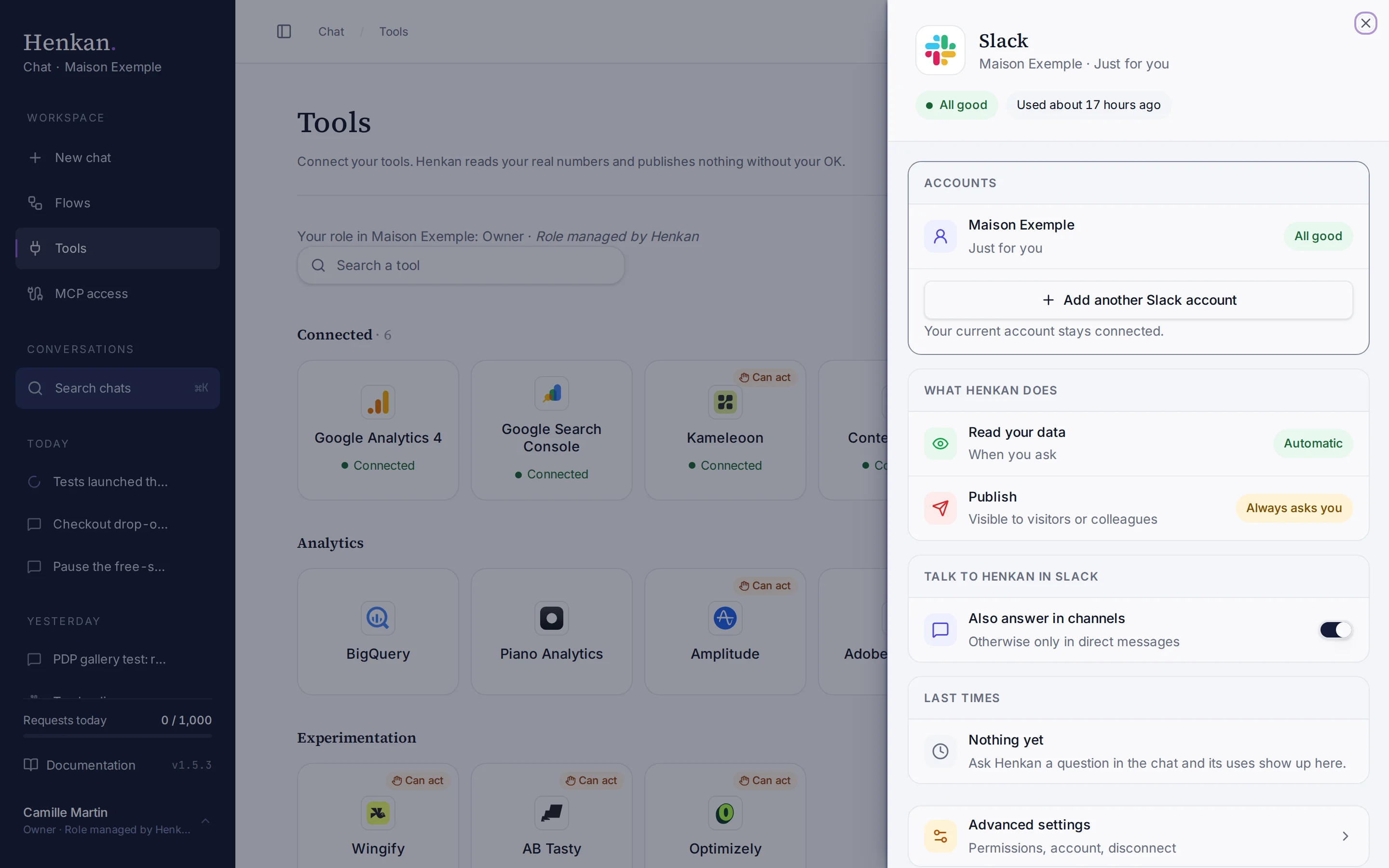
Open Tools in the sidebar and select Slack.
| Setting | Effect |
|---|---|
| Also answer in channels | On by default. When off, Henkan only answers you in direct messages, and replies privately in channels to tell you so. |
| Unlink | Removes the link between your Slack account and Henkan Chat. Henkan asks you to link again next time. |
Henkan can also restrict a whole Slack workspace to direct messages only. In that case, Henkan asks you to DM it when you mention it in a channel.