HubSpot, Salesforce and Adobe Analytics connect to the vendor's official MCP server, like the other official MCP connectors. Their servers don't let apps register themselves, so each one needs an extra set-up step, described per vendor below.
Before you start#
| Tool | You need |
|---|---|
| HubSpot | A HubSpot user. Each user signs in and authorizes the connection with their own HubSpot permissions. If HubSpot refuses the install, ask your HubSpot account admin. Some tools need specific hubs (for example Marketing Hub Professional for AEO tools). |
| Salesforce | A Salesforce System Administrator (or equivalent), to turn on the MCP servers and create an External Client App (see below). |
| Adobe Analytics | Access to the Adobe Developer Console, to create an OAuth Server-to-Server credential (see below). |
Salesforce set-up#
- In Salesforce Setup, activate the hosted MCP servers.
- In Setup, search Quick Find for External Client App Manager, select New External Client App and, under API (Enable OAuth Settings), select Enable OAuth.
- Give it the scopes Access MCP servers (
mcp_api) and Perform requests at any time (refresh_token), turn on PKCE and Issue JSON Web Token (JWT)-based access tokens for named users, and add the callback URL shown in the Henkan form. The app can take up to 30 minutes to work. - In the app's Settings › Consumer Key and Secret, copy the consumer key and consumer secret.
Adobe Analytics set-up#
- In the Adobe Developer Console, open your project and add an OAuth Server-to-Server credential.
- Add the credential's technical account to a product profile with the MCP Read-only Access permission item (MCP Full Access only if Henkan should create or update components).
- Copy the Client ID and Client secret, and the IMS organization ID (it ends with
@AdobeOrg). - In Adobe Analytics, open Admin › Company settings › API access and copy the global company ID.
Connect#
HubSpot
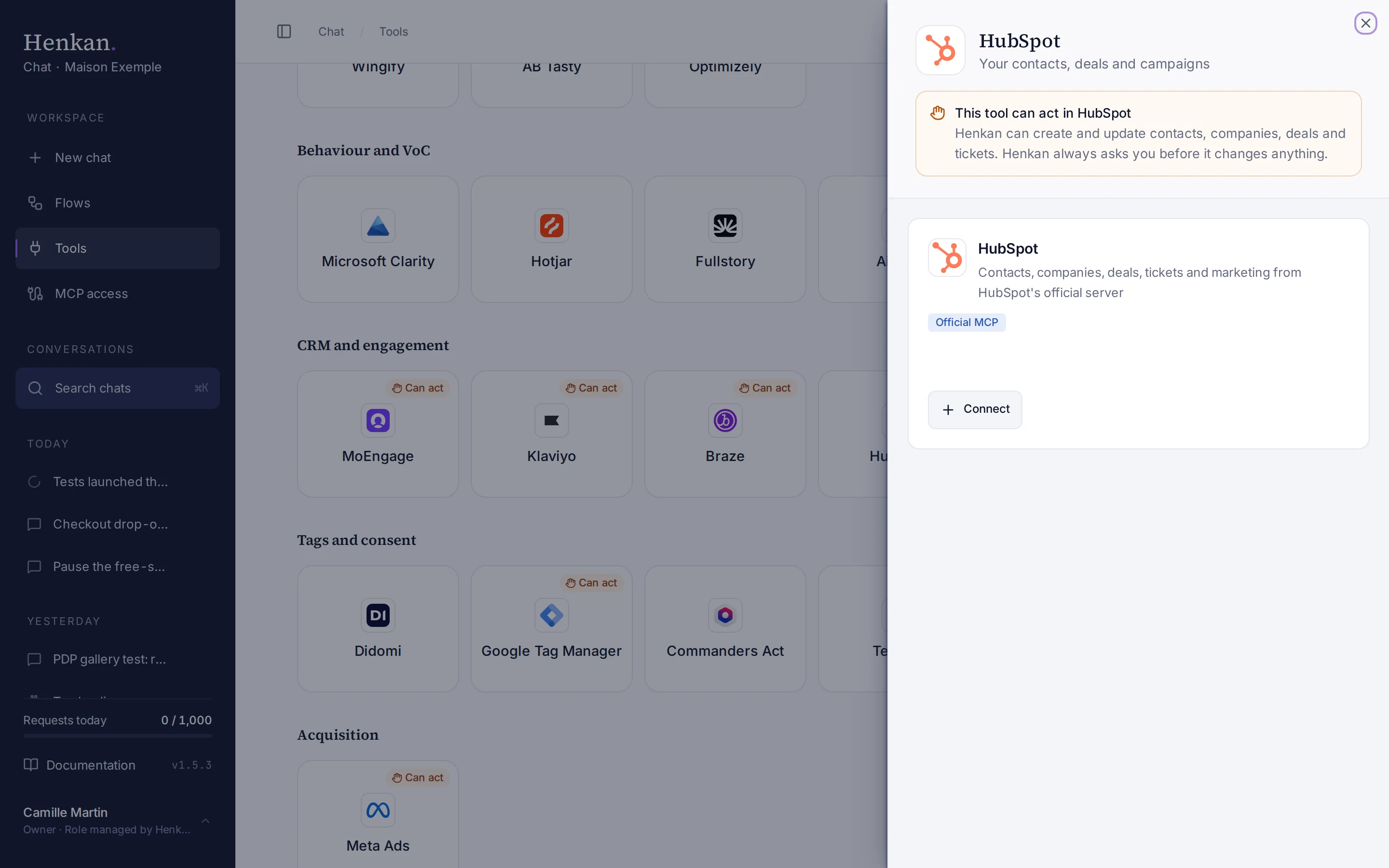
1
Official MCP. HubSpot connects through its own MCP server.
2
Connect. Opens the HubSpot sign-in.
- Open Tools In the sidebar, select Tools, then select HubSpot and Connect.
- Sign in with HubSpot Henkan uses its own HubSpot MCP connector app. Allow access.
Salesforce
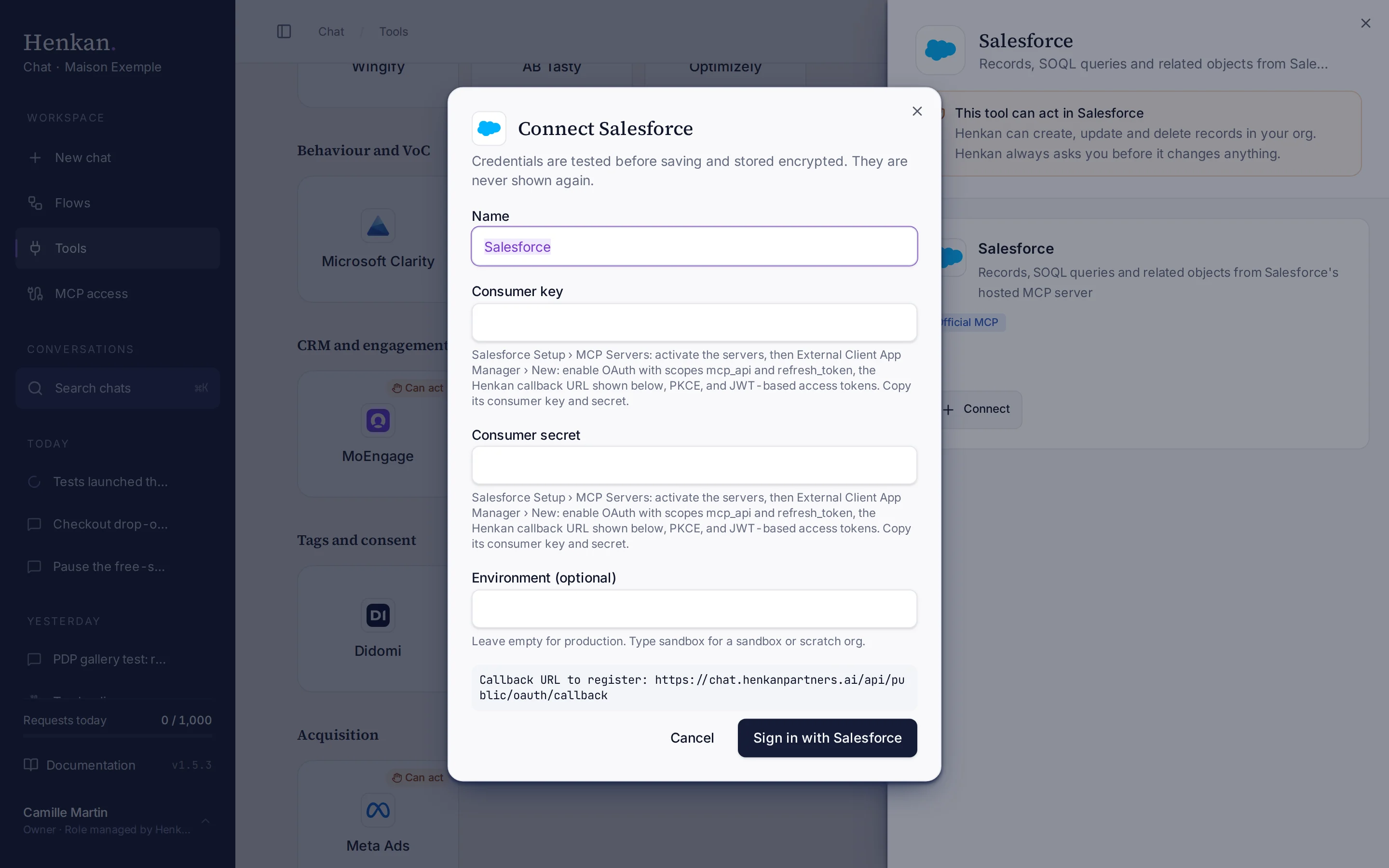
1
Name. Helps you recognise this connection.
2
Help text. How to set up the External Client App in Salesforce.
3
Sign in with Salesforce. Opens the Salesforce sign-in.
- Open Tools Select Salesforce and Connect.
- Paste the app's keys Enter the Consumer key and Consumer secret. In Environment, leave empty for production or type
sandboxfor a sandbox or scratch org. - Select Sign in with Salesforce Log in and allow access.
Adobe Analytics
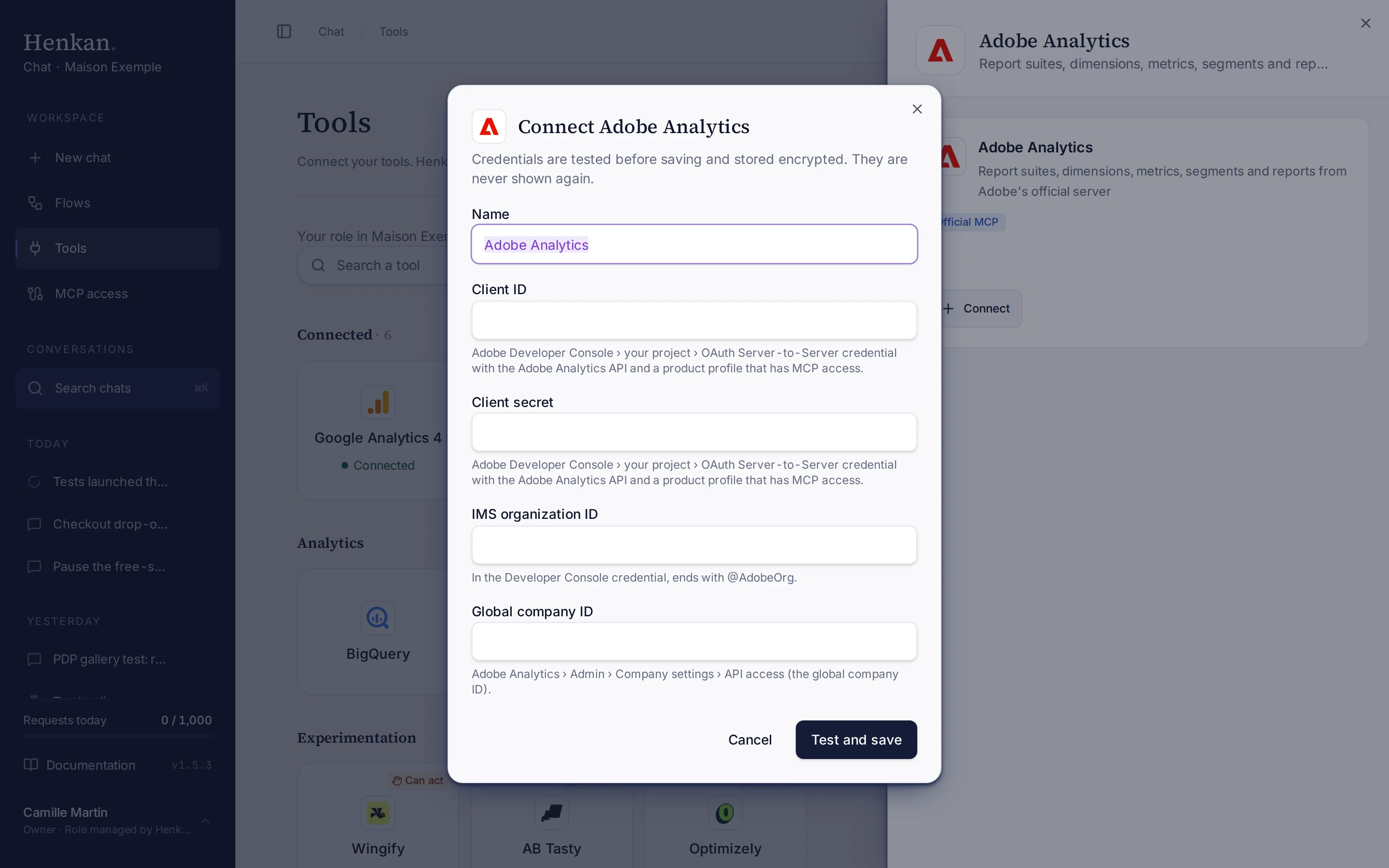
1
Name. Helps you recognise this connection.
2
Help text. Where to create the credential in the Adobe Developer Console.
3
Test and save. Checks the credentials before storing them.
- Open Tools Select Adobe Analytics and Connect.
- Paste the credentials Enter the Client ID, Client secret, IMS organization ID and Global company ID.
- Select Test and save No sign-in window opens: the credential acts on its own.
What you can ask#
- "Deals created this month by pipeline stage." (HubSpot)
- "Open opportunities over €50k closing this quarter." (Salesforce)
- "Visits and orders by marketing channel last month, report suite FR." (Adobe Analytics)
- "Which segments do we have in Adobe Analytics?" (Adobe Analytics)
What Chat can and can't do#
The tools come from each vendor's server and can change when the vendor updates it. Open the connection's Advanced settings › Tool by tool to see them.
| Tool | What it does | Read or write | Asks first? |
|---|---|---|---|
| Tools the vendor marks as read-only | HubSpot: contacts, companies, deals, tickets, marketing. Salesforce: records, SOQL queries, related objects. Adobe Analytics: report suites, dimensions, metrics, segments, reports. | Read | No |
| Any other tool | May change data in the tool. | Write | Yes |
Limits and good to know#
- Permissions are the vendor's. HubSpot and Salesforce use the signed-in user's permissions. Adobe uses the product profile of the credential.
- Limits come from the vendor, such as API call limits on your plan.
- Costs and who pays. Your Henkan plan covers the AI requests: each question counts towards your organisation's requests (see Usage and limits). API limits and any usage costs on the vendor's side fall under your contract with that vendor.
Troubleshooting#
| Error or symptom | Fix |
|---|---|
| HubSpot sign-in fails for a user | Your HubSpot account admin must connect first. |
| Salesforce refuses the sign-in | Check the app's scopes (mcp_api, refresh_token), PKCE, JWT-based access tokens and the callback URL. |
| Salesforce sandbox data is missing | Connect again and type sandbox in Environment. |
| Adobe Analytics rejected the credentials | Check the client ID and secret, the IMS organization ID (ending @AdobeOrg) and the global company ID. |
| Adobe tools are refused | The product profile needs MCP Read-only Access or Full Access. |
Sources#
- Using the HubSpot MCP server (HubSpot Developers)
- Integrate AI tools with the HubSpot MCP server (HubSpot Developers)
- Set Up Your Org (Salesforce Developers)
- Create an External Client App (Salesforce Developers)
- Getting started with Analytics MCP servers (Adobe Developer)
- Use OAuth to connect (Adobe Developer)