Connect any remote server that speaks the Model Context Protocol (MCP), such as an internal data API your team exposes over MCP. MCP is an open standard that lets AI assistants call tools.
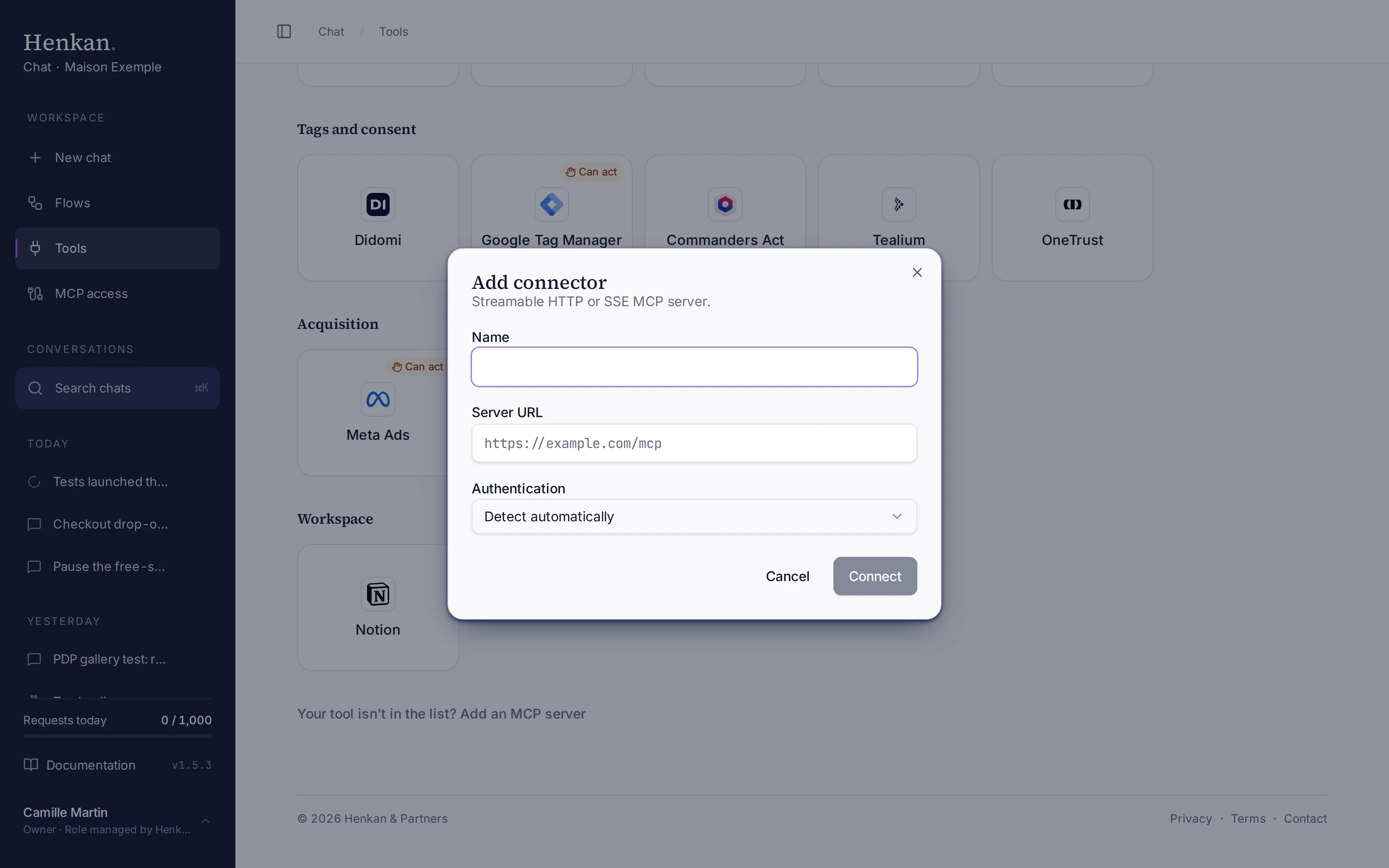
1
Server URL. Streamable HTTP and SSE servers are supported.
2
Authentication. Detect automatically works for most servers.
Add a server#
Your own MCP servers are a premium connector, in the Max plan. On another plan the link shows a small Max badge and Henkan explains how to switch or to try one; servers you already added keep working. See Requests and plans.
- Open the dialog On the Tools page, select Your tool isn't in the list? Add an MCP server.
- Name it Enter a Name you will recognise in answers and on the Tools page.
- Paste the URL Enter the Server URL, for example
https://mcp.example.com/mcp. - Pick the authentication Keep Detect automatically, or choose one of the options below.
- Connect Select Connect. For OAuth servers a sign-in window opens. The server then appears on the Tools page with its tools.
| Authentication | When to use it |
|---|---|
| Detect automatically | Default. Henkan works out whether the server needs OAuth or nothing. |
| None | Public servers that need no credentials. |
| Bearer token / API key | Servers that take a key in a header. Enter the Header name (default Authorization) and the Token. |
| OAuth 2.1 | Servers that sign you in with OAuth. A sign-in window opens. |
After connecting#
- All tools are switched on. Tools the server declares as read-only start as Always allow; every other tool starts as Ask before running, so Henkan asks you before each call. Review them in the server's Advanced settings. See Connect your tools.
- If the server adds or changes tools, select Refresh tools in its Advanced settings.
- If the token expires, the tool shows Sign in again: paste a new token in Advanced settings and select Save, or Sign in again for OAuth servers.