Go from your first sign-in to an answer based on your own data in about five minutes. You need a Henkan Chat account with access (see Sign in and get access) and access to at least one tool, such as a Google Analytics 4 property.
1. Sign in#
- Open Henkan Chat Go to chat.henkanpartners.ai and select Sign in.
- Choose a sign-in method Select Continue with Google, or enter your work email and password.
- Land on a new chat Once signed in, you see the greeting and the message box.
2. Connect a tool#
1
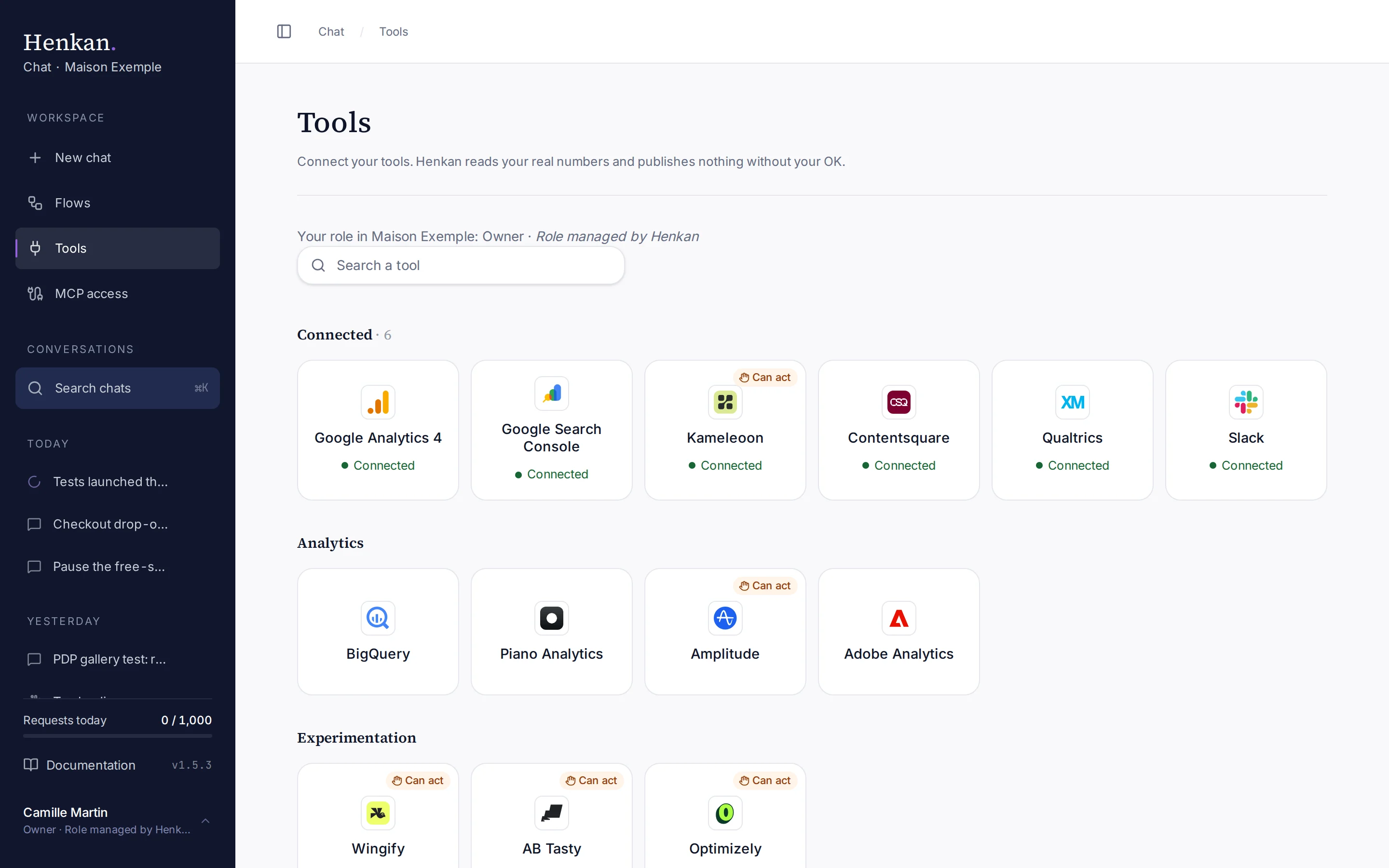
Connected tools. They come first, with a green dot.
- Open Tools In the sidebar, select Tools.
- Pick Google Analytics 4 Select the Google Analytics 4 tile, then Connect. A Google window opens.
- Approve read-only access Choose your Google account and approve. Henkan only asks for read-only access to Analytics.
- Check the result The tile shows Connected, with a green dot.
3. Ask your first question#
- Start a new chat In the sidebar, select New chat.
- Write your question For example: Compare sessions and conversion rate by device for maison-exemple.com, last 7 days vs the previous 7 days.
- Send it Press Enter, or select the send button. Shift+Enter adds a new line.
- Read the answer Henkan finds the right property, runs the reports and answers with a table. Select Used N tools above the answer to see each call.
1
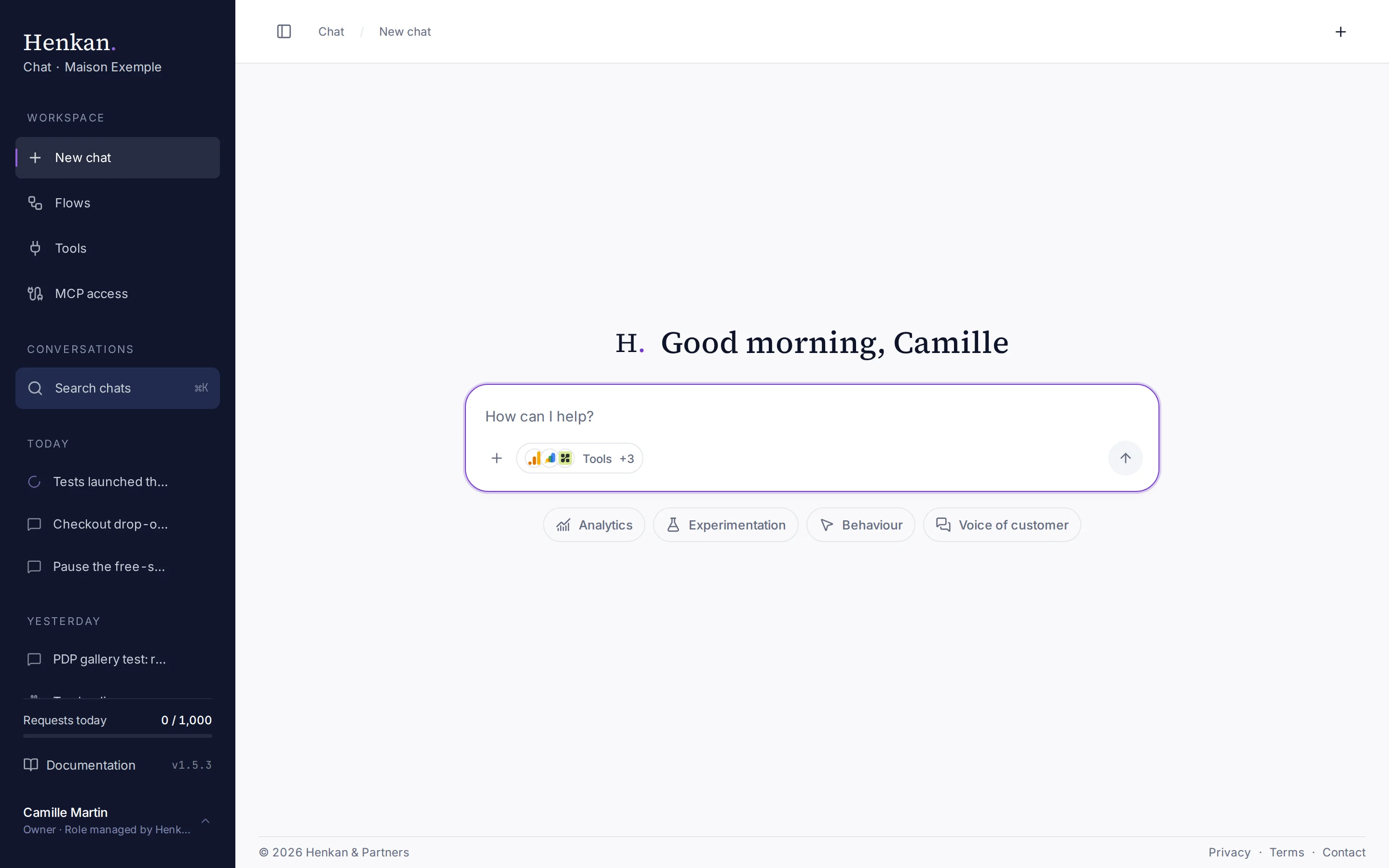
Message box. Type a question, or drop files here.
2
Tools. Choose which connections Henkan may use in this conversation.
3
Suggestions. Select one to see example prompts you can edit.
4
History. Your past conversations, grouped by date.