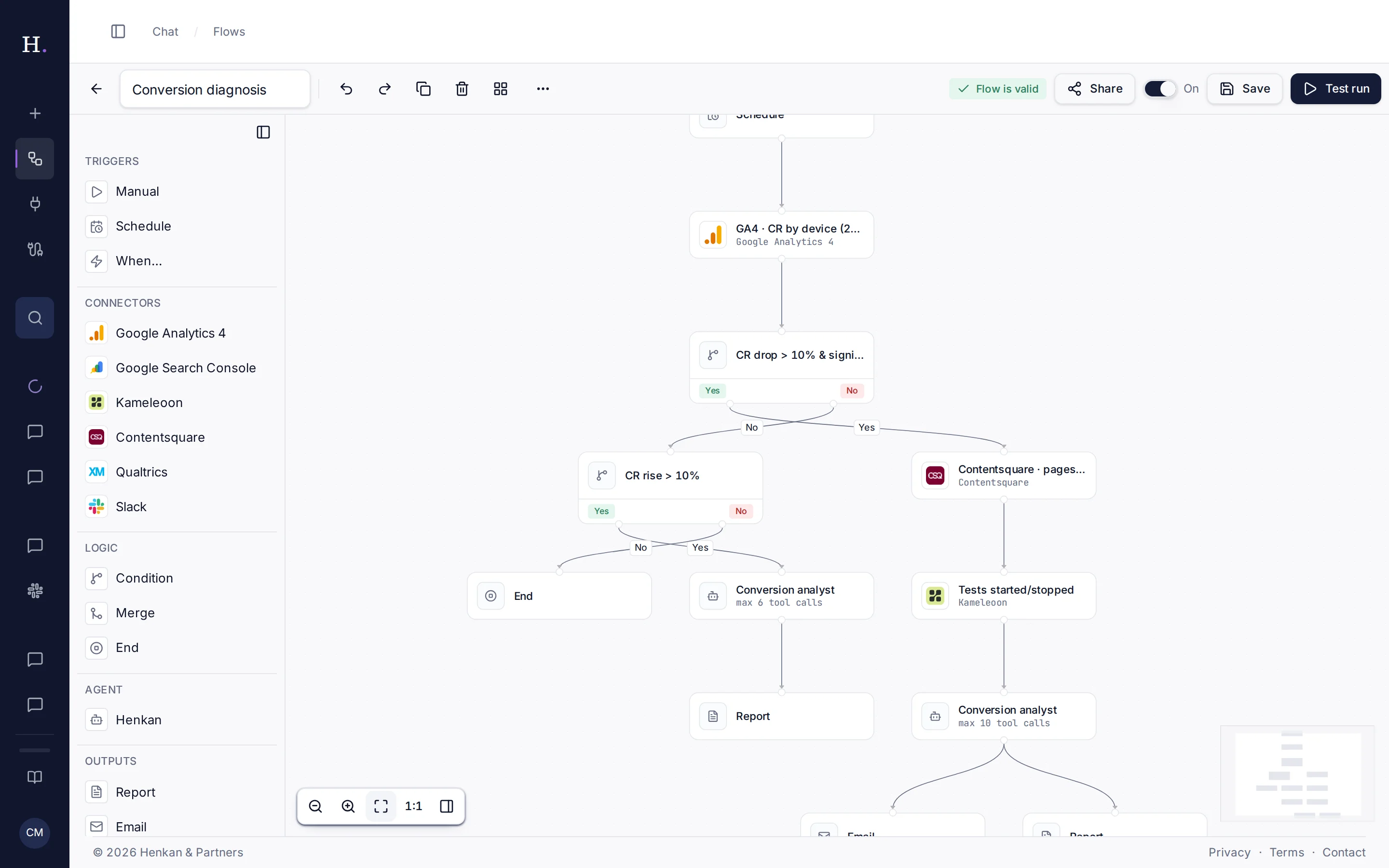
Build a flow on a canvas: each block is one step, and arrows decide what runs next. A block runs as soon as the blocks before it have finished, so independent branches run in parallel.
Edit the flow#
- Add blocks Drag a block from the palette onto the canvas, or double-click it in the palette.
- Connect blocks Drag from the bottom edge of one block to another. A condition block has two exits, Yes and No.
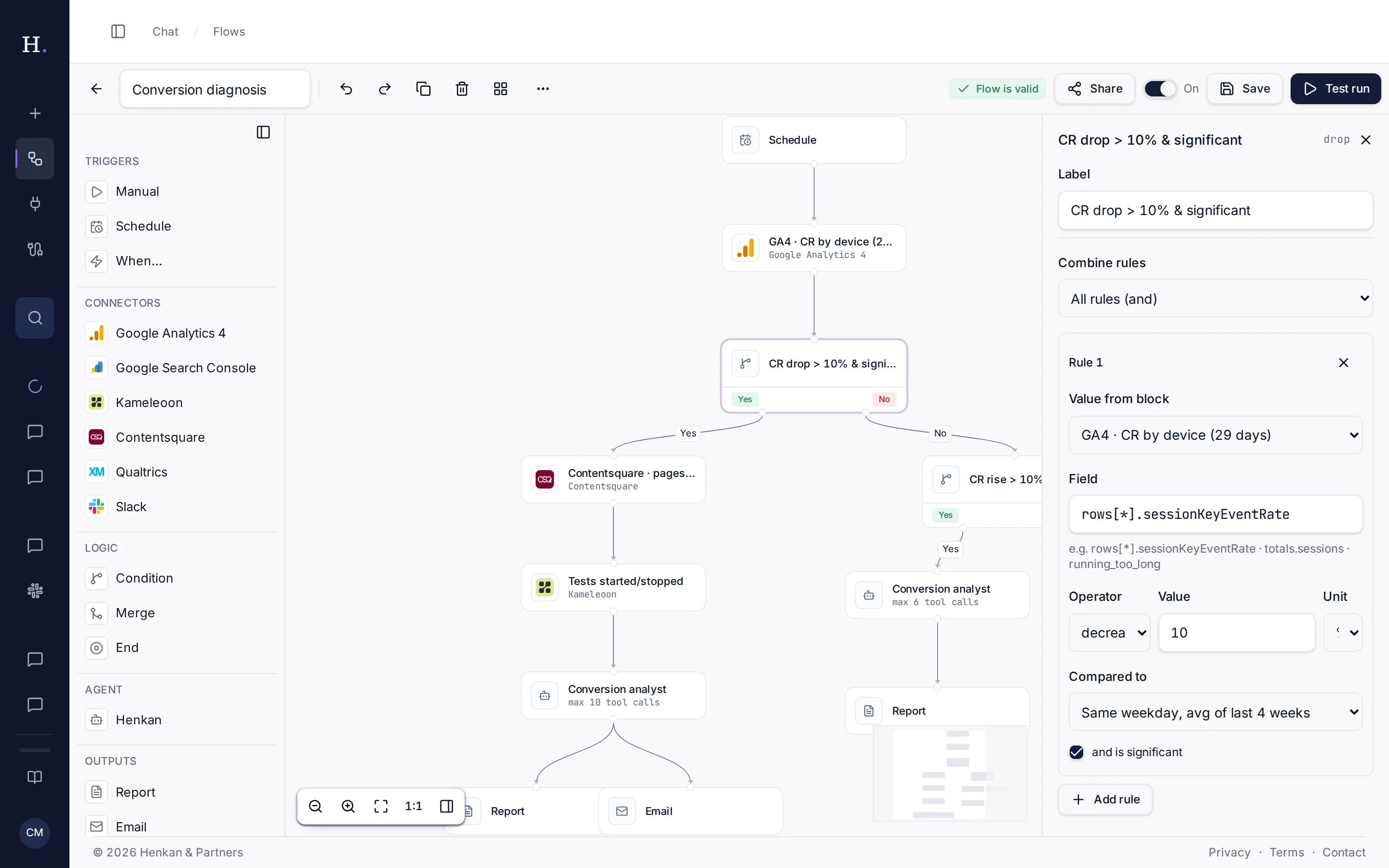
- Configure a block Select a block to open its settings on the right.
- Save Select Save. A dot after the label means there are unsaved changes.
The toolbar above the canvas has Undo, Redo, Duplicate and Delete for the selected blocks, and Auto-layout to tidy the canvas. The ⋯ menu opens Parameters, Run history, Duplicate for another client and Delete.
| Shortcut | Action |
|---|---|
| ⌘Z / Ctrl+Z | Undo |
| ⌘⇧Z / Ctrl+Shift+Z or Ctrl+Y | Redo |
| ⌘D / Ctrl+D | Duplicate the selected blocks |
Blocks#
Triggers#
Each flow has exactly one trigger.
| Block | Runs the flow | Settings |
|---|---|---|
| Manual | Only when you start it. | None. |
| Schedule | Hourly, daily or weekly. | Frequency, Day, Hour, Minute, Time zone. |
| When… | When something happens in a tool. | When: Campaign/experiment status changes (Kameleoon or Wingify, with From and To statuses and an optional Campaign name contains), GA4 metric crosses a threshold (Property, Metric, Direction, Threshold, Days) or New Qualtrics responses (Survey id, Minimum new responses). |
Event triggers are checked every 10 minutes.
Connectors#
One block per connected tool. Pick the Connection and the Tool, then fill in its arguments. Tools that change data cannot be used here.
Logic#
| Block | What it does |
|---|---|
| Condition | Checks one or more rules on the output of an earlier block, combined with All rules (and) or Any rule (or). Operators include equals, greater than, contains, is empty, and increases by, decreases by or changes by a percentage or an absolute value, compared with the previous period or with Same weekday, avg of last 4 weeks. A rule can also require the change to be significant. |
| Merge | Waits for several branches before continuing. Timeout (seconds) is between 10 and 600 (default 300). Continue with partial results if a branch fails or times out is optional. |
| End | Ends a branch without output, for example the No exit of a condition. |
Agent#
The Henkan block runs Henkan as an analyst on the results of the blocks before it.
| Setting | What to enter |
|---|---|
| Role | For example conversion analyst, A/B test expert, SEO expert or VoC analyst, or a Custom… role. |
| Instructions | What Henkan should look for and conclude. |
| Max tool calls | 0 to 30, default 10. |
| Output format | How the result should be laid out. |
| Allowed tools | The tools the block may call itself. |
Role names appear in your interface language (English or French), and flows saved with older role names keep working. Presets for test results, session recordings and heatmaps return structured findings.
Outputs#
| Block | What it does |
|---|---|
| Report | Saves the result as a new conversation in Henkan Chat, with a Report title. Style Last agent answer, or Learnings report (executive summary, evidence table, what to test next) for merged findings. |
| Emails the report to you, with an Email subject. | |
| PDF + email | Renders the report as a PDF and emails you a download link (valid 7 days). |
| Slack | Posts to a channel of a connected Slack workspace, with a link to the report. |
| Notion | Publishes the report as a new page inside a parent page, or as a row in a database with the properties you map. |
Slack and Notion appear under Outputs once those tools are connected.
Parameters#
Parameters make a flow reusable. Write {name} in any block setting, for example {client} in a report title or {ga4_property} in a GA4 block.
Set the values in ⋯ › Parameters. To add a parameter there, type its name and select +.
To use a value produced by an earlier block, write {{block_id.field}}. Flows started by a When… trigger also receive event values such as {campaign.name}, {campaign.url}, {from_status}, {to_status}, {metric.value}, {survey.name} and {responses.new}.
Duplicate for another client copies a flow and asks for new parameter values, so one flow can serve several sites or clients.
Fix issues#
The pill next to the on/off switch shows Flow is valid or the number of issues to fix. Select it to see each issue, then select an issue to see the block concerned. The most common ones:
| Issue | Fix |
|---|---|
| Add exactly one trigger. | Add a Manual, Schedule or When… block, and remove extra triggers. |
| Not connected: add an incoming arrow. | Connect the block to an earlier one. |
| Dead end: connect it to another block or an output. | Connect the block onward, or to an End block. |
| Connect the ✅ yes branch (or to an End block). | Every condition needs both exits connected. |
| Pick a connection and a tool. | Complete the connector block. |
| Write tools are not allowed in flows. | Choose a read-only tool. |
| The flow has a loop; arrows must go forward. | Remove the arrow that points back. |
You can save a flow with issues as a draft, but it is switched off until they are fixed.