Ask Henkan a question in plain language and get an answer built from your connected tools. Henkan picks the tools to call, shows each call, and tells you where every number came from.
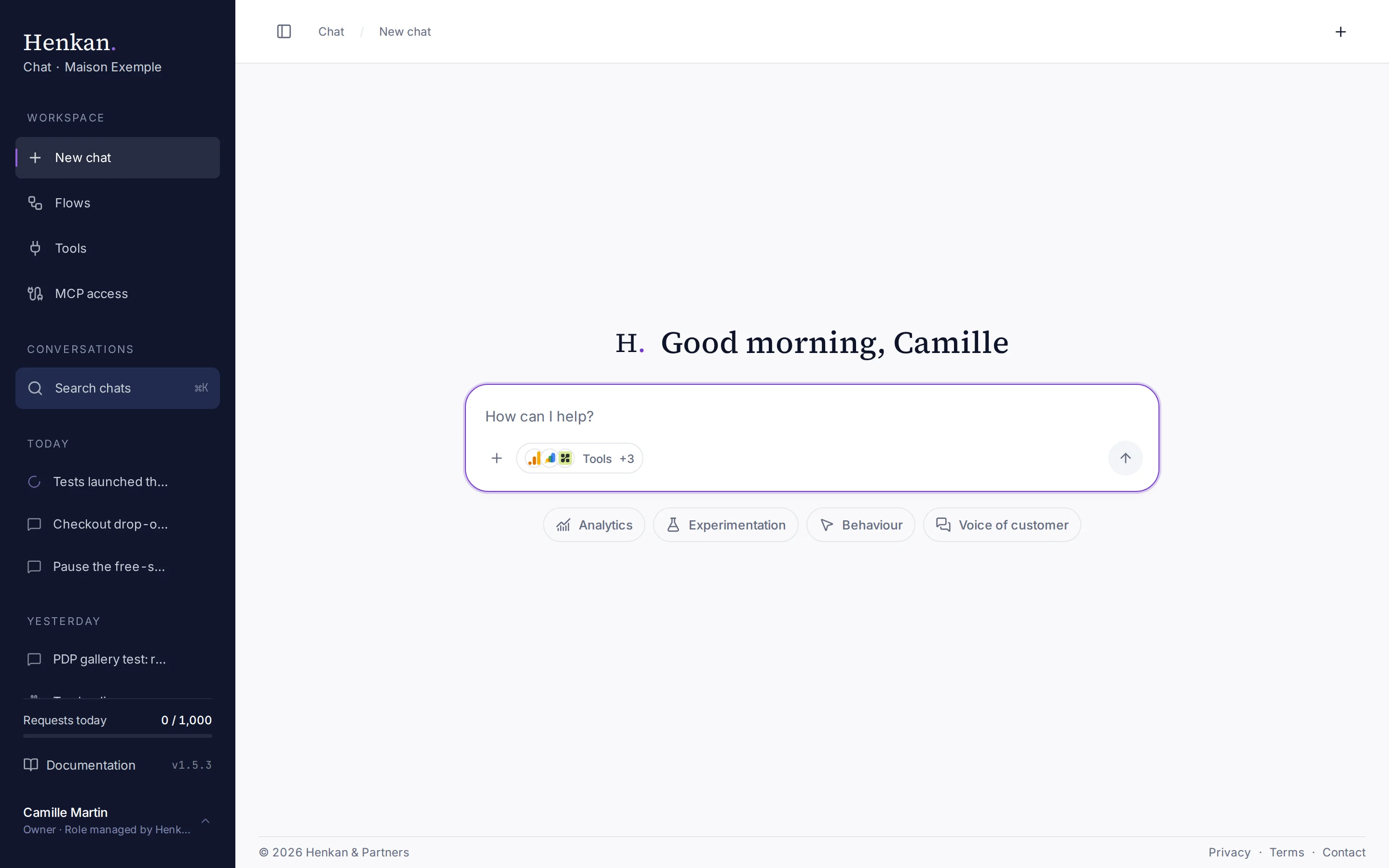
Ask a question#
- Start a new chat Select New chat in the sidebar, or the + button at the top right of any conversation.
- Write your question Name the site, the period and the comparison you want. Henkan replies in the language you write in.
- Send it Press Enter or select the send button. Shift+Enter adds a new line.
- Stop if needed While Henkan is answering, the send button becomes Stop. What was written so far is kept and marked Stopped.
While Henkan works#
As soon as you send, your question appears with a card saying Henkan is analysing your data…, even on a new chat. Most answers take 10 to 30 seconds; long analyses can take a minute or more.
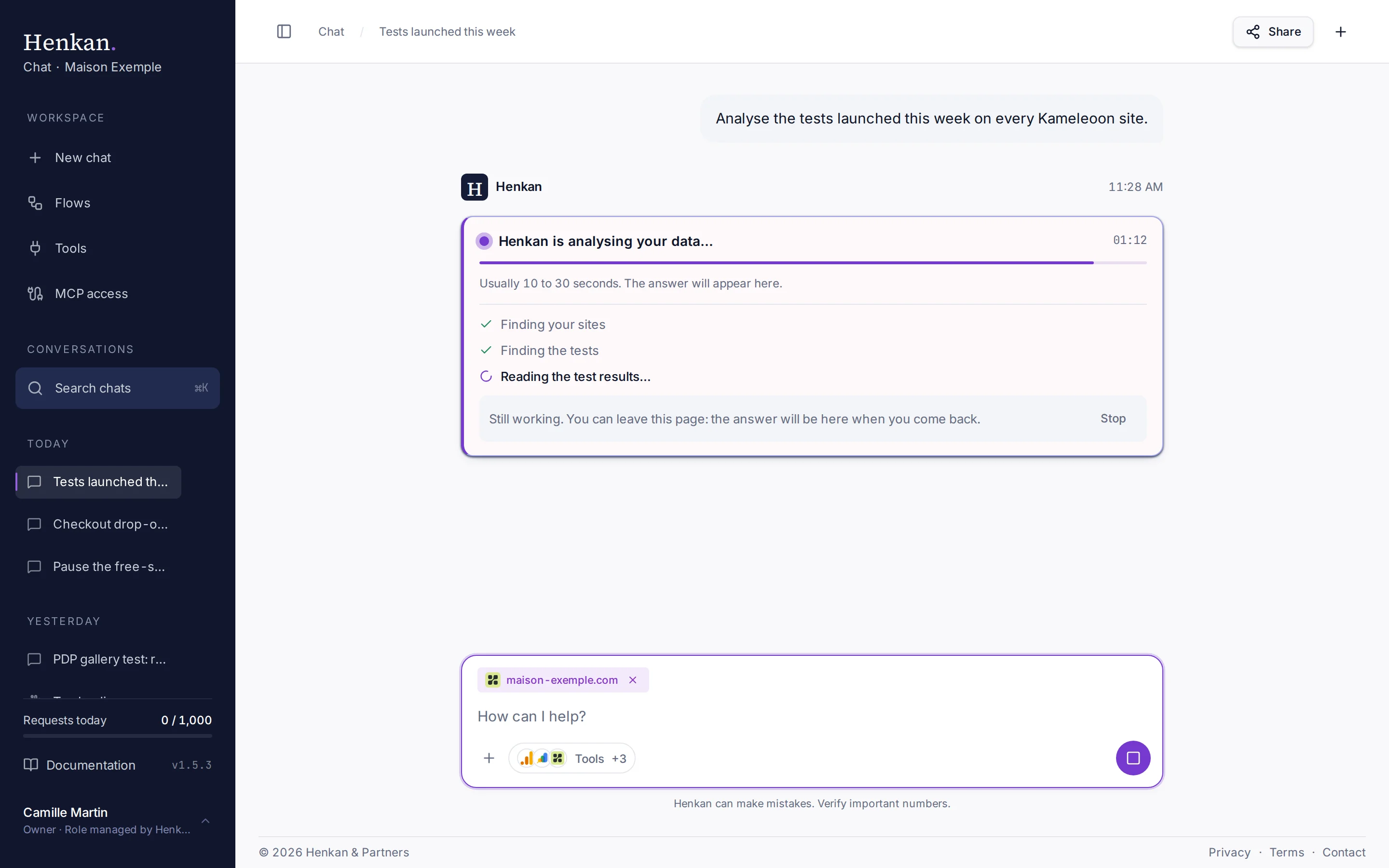
The card lists each step in plain words, for example:
- Finding your GA4 property, then Found the GA4 property maison-exemple.com
- Running the report or Building the funnel
- Reading the test results or Reading the survey answers
- Reading Search Console or Checking the tag container
- Using and the connection's name, for other tools
Once every step is done, the card says Writing the answer.
| After | What the card adds |
|---|---|
| 20 seconds | A note that big analyses usually take under a minute, and that you can already leave the page while Henkan keeps going. |
| 1 minute | You can leave the page: the answer keeps running and is saved. A Stop button appears. |
| 45 seconds without progress | Which tool is slow to answer, with Keep waiting and Stop. Henkan waits up to 5 minutes. |
Once Henkan starts writing, the card gives way to a small line under the answer that says what it is doing now (for example Running the report… or Writing the answer…) with the time since you asked. After 20 seconds it adds You can leave this page: Henkan keeps going. It stays until the answer is finished.
You don't have to wait on the page: you can open another conversation, close the tab or put your computer to sleep. Henkan finishes the answer on its side and saves it; open the conversation again to read it. If you come back while it is still being written, the page follows it until the end, and Stop in the message box still stops it. If Henkan's server was interrupted along the way, it picks the answer up again from its last step within a minute or two; a call that changes something in one of your tools (for example pausing a test) is never run twice.
In the conversation list, a small spinner shows a conversation whose answer is still being written, and a dot shows an answer that finished while you were elsewhere (red if it did not finish). The dot goes away when you open the conversation.
If an answer that used your tools still cannot finish, Henkan says the request is too complex for Henkan Chat for now. Choose Yes, put me in touch and the Henkan team receives your question to find a solution with you, or choose Retry to try again.
If you switched tabs, the tab title shows ✓ Answer ready when the answer is done.
Use a suggestion#
Below the message box, Henkan shows up to four suggestion chips, based on what you have connected:
| Chip | Shown when you have connected |
|---|---|
| Analytics | An analytics tool |
| Experimentation | Kameleoon or Wingify |
| Behaviour | Contentsquare, Clarity or Henkan Vision |
| Voice of customer | Qualtrics |
| Test hypothesis, Explain SRM and other general chips | Fill the remaining places |
Select a chip to see three example prompts. Selecting a prompt places it in the message box, so you can edit it before sending.
Attach files#
Select + (Add files or tools) in the message box, drag files onto it, or paste them.
| File type | Accepted | Limit |
|---|---|---|
| Images | PNG, JPEG, GIF, WebP | 5 MB each |
| Text files | .txt, .md, .csv, .tsv, .json, .xml, .html, .yaml, .js, .ts, .tsx, .jsx, .py, .sql, .log | 200 KB each |
| Other files (PDF, Excel, Word) | Not supported | — |
You can attach up to 8 files per message, and send files without any text. Attached files appear as chips in the message box; remove one with its ×.
Choose which tools Henkan may use#
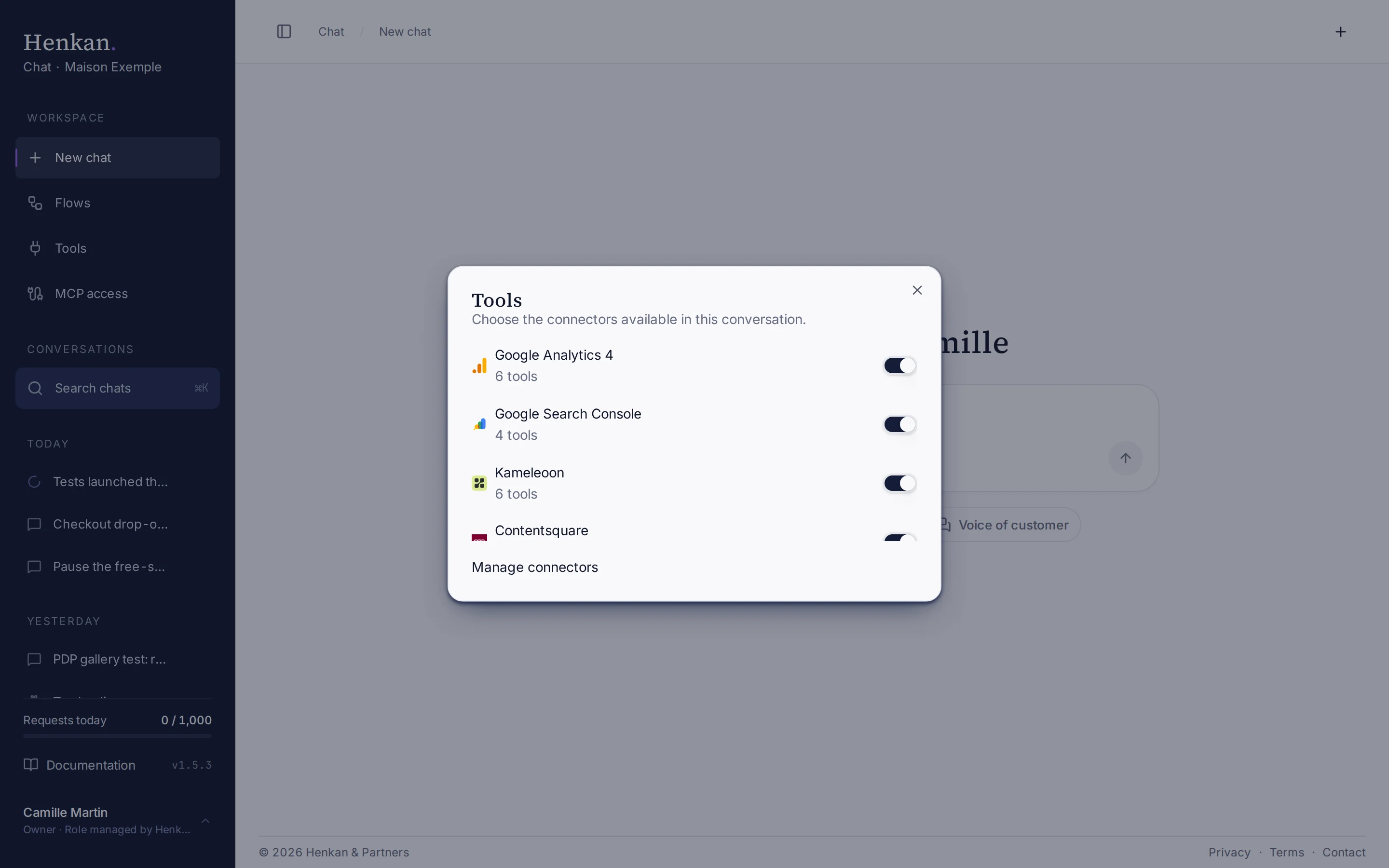
By default, Henkan may use every connection with the status Connected. To narrow it down for one conversation:
- Open Tools In the message box, select Tools.
- Switch connections off Turn off the connections Henkan should not use. The number next to each name is how many of its tools are on.
- Close the dialog The choice is saved with the conversation. On a new chat, it applies to the conversation you are about to start.
To switch individual tools on or off for every conversation, use the Tools page.
Active context#
When Henkan works with a specific GA4 property, Kameleoon or Wingify site, Contentsquare project or similar, it remembers it for the rest of the conversation. It shows it as a chip in the message box, for example maison-exemple.com – GA4, and follow-up questions use it by default.
To switch to another property, ask for it by name, or remove the chip with its × so Henkan picks again.
Run a flow from the chat#
Type /flow followed by the name of one of your flows, for example /flow conversion diagnosis. Henkan starts the flow instead of answering and replies with a link to follow it live on the canvas.
The report appears as a new conversation when the run finishes. If no flow matches, Henkan lists your flows. On the Free plan, Henkan replies that Flows are available on Pro and Max instead of starting the flow.
Create a post-mortem flow from a sentence#
Describe the automation in one sentence, for example: Create a workflow that runs every time a Kameleoon campaign is paused: three agents review it and email me a PDF report of learnings.
Henkan creates the flow from the Test post-mortem template, switched off, and links to it so you can review it and switch it on. This works for flows triggered by a test being started, paused, stopped or declared a winner.
On your phone#
On a phone, Henkan Chat is a simple, uncluttered chat:
- New chat: Henkan greets you by name, with a few starter suggestions under the greeting. Tap one to ask it.
- Message box: a card at the bottom of the screen. Under the field: + to attach a photo or a text file, the tools pill (for example 6 tools) to choose which connected tools Henkan may use, the microphone to dictate, and the round button. Return adds a new line; the keyboard stays open after you send.
- Dictate: tap the microphone and talk. Your words appear in the field as you speak; tap the round arrow to send, or the cross to put back what you had typed. Your phone turns your voice into text: only the text is sent.
- Voice mode: when the field is empty, the round button opens voice mode. Ask your question out loud; Henkan answers and reads the start of its answer aloud, then listens for your next question. The full answer, tables and charts stay in the chat. If Henkan needs your OK, voice mode closes so you can see the approval card. Tap the microphone to mute it, or the red cross to leave. Your browser asks once for the microphone. If your phone's browser can't turn speech into text, the microphone and voice mode don't appear.
- Answers read like a page: text across the screen, tables and charts in white cards. Swipe a wide table sideways to see every column, and tap a bar or a point of a chart to see its values. Under each answer: copy, Read aloud and feedback, plus regenerate under the latest one. While Henkan works, its mark pulses with one line saying what it is reading, and Stop ends the answer.
- Scrolling: the chat follows the answer while you are at the bottom. Scroll up to read and it stays where you are; tap the round arrow above the message box to jump back to the latest message.
- Sidebar: tap the sidebar button at the top left, or swipe from the left edge of the screen, to search your chats, start a new one, open the docs or go back to a recent chat. Your name, workspace and the questions your plan has left are at the bottom: tap them to switch workspace or sign out. On a new chat, the workspace name at the top does the same.
- Approvals work as on a computer: the card asks for your OK before Henkan changes anything.
Connectors, Flows, External AI tools and account settings are only on a computer. On a phone, those pages say Available on desktop, with a button back to your chats.