Flows run the investigations you would otherwise repeat by hand, and deliver the report by email, Slack or Notion. They run on a schedule, when something happens in one of your tools, or when you start them.
A flow fetches data from your tools, checks a condition, lets Henkan analyse what it found, then writes the report.
Flows are in the Pro, Max and POC plans. On the Free plan the Flows page shows Flows are available on Pro and Max — talk to Henkan; Flows you already made are kept and run again after a plan change. See Requests and plans.
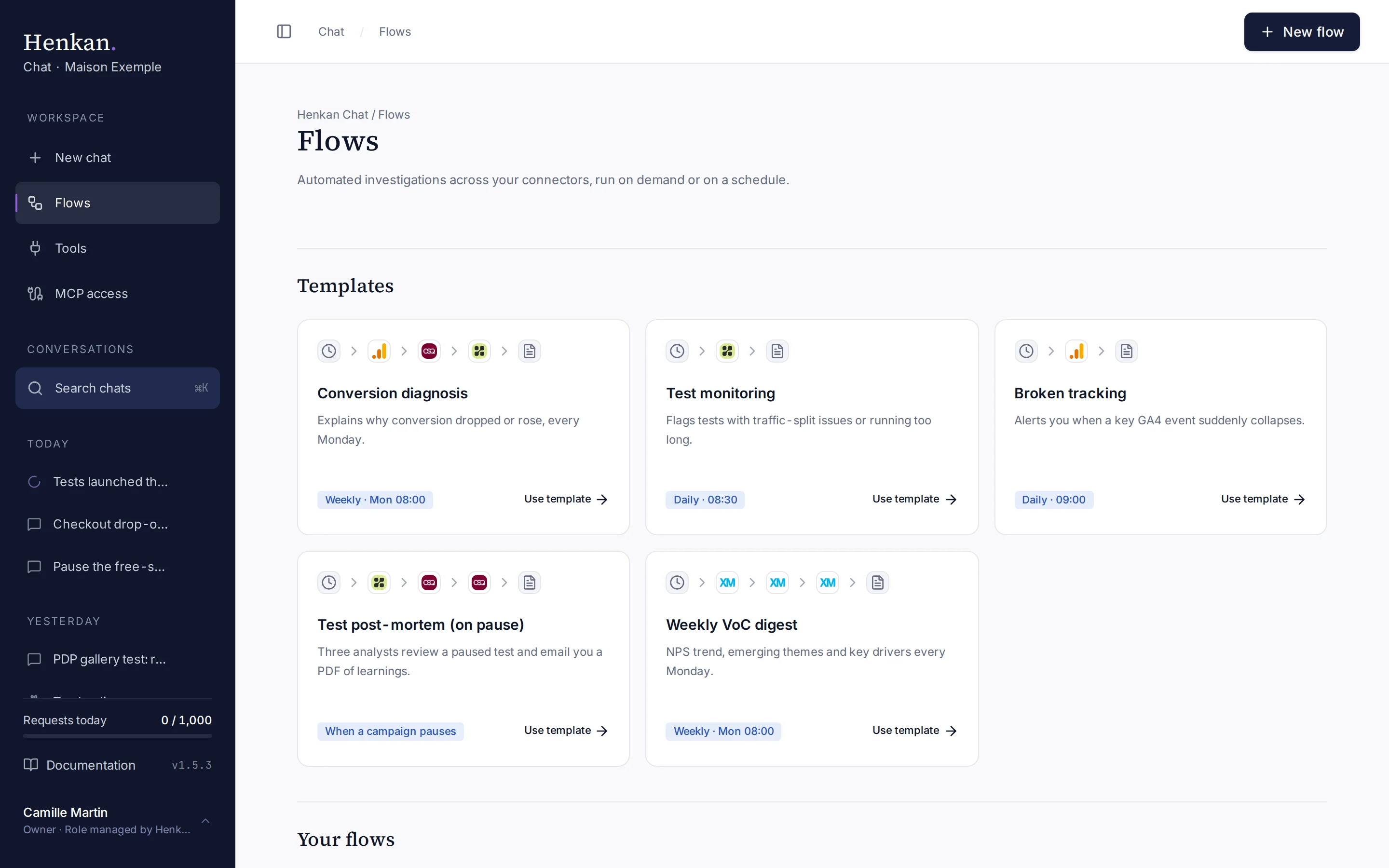
Create a flow#
- Open Flows In the sidebar, select Flows.
- Pick a starting point Select Use template on a template card, or New flow for an empty canvas. The flow opens in the editor, switched off.
- Fill in the parameters Templates use parameters such as
clientorga4_property. Open ⋯ › Parameters in the editor to fill them in. See Build a flow. - Test it Select Test run and follow the run on the canvas.
- Switch it on Turn on the On switch. A flow can only be switched on when it has nothing left to fix.
Templates are bound automatically to your first connection of each tool. If you use Wingify instead of Kameleoon, test blocks switch to their Wingify equivalent. See Flow templates.
Your flows#
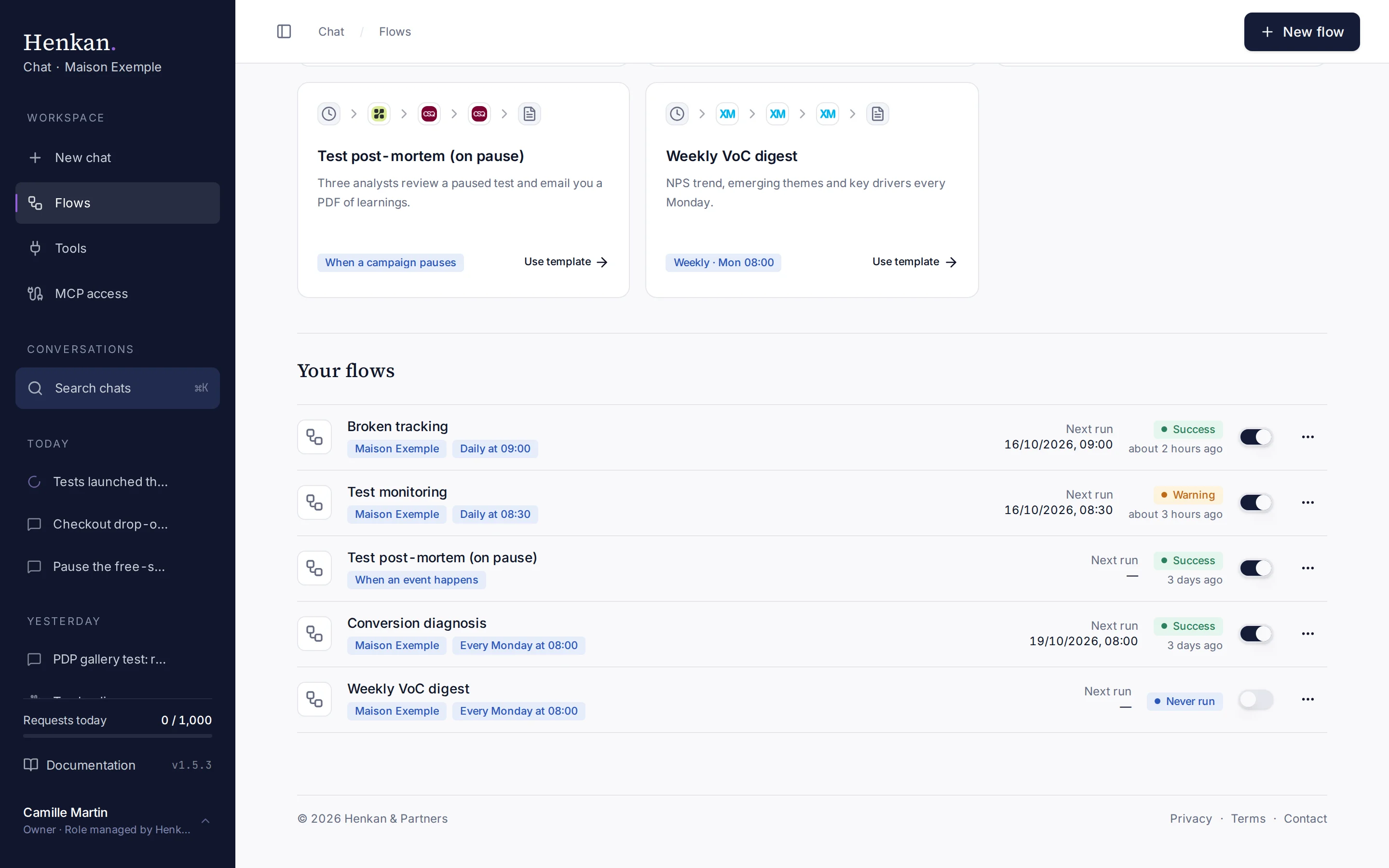
Each row shows the flow's name, its client parameter if it has one, its trigger (for example Every Monday at 08:00, Daily at 09:00, When an event happens or Manual), the next scheduled run, the last result and the on/off switch.
| Last result | Meaning |
|---|---|
| Success | Every block finished. |
| Warning | The run finished, but something needs your attention, for example an email that could not be sent or a merge that continued with partial results. |
| Error | The run stopped. Open the run history to see which block failed and why. |
| Running | A run is in progress. |
| Never run | The flow has not run yet. |
| Menu action | What it does |
|---|---|
| Edit | Opens the flow in the editor. |
| Run now | Starts a run immediately and opens it on the canvas. |
| Duplicate for another client | Copies the flow with a new name and new parameter values, for example another site or GA4 property. |
| Run history | Opens the editor with the list of past runs. |
| Delete | Deletes the flow and its run history after confirmation. |
Flows shared with you#
Flows colleagues shared with you appear under Shared with me below your flows, with who shared them and your access: Can view, Can run or Can edit. Runs you start use your own connectors, and their report is saved in your own conversations.
To share one of your flows, open it and select Share in the editor toolbar. See Share with colleagues.
Other ways to start a flow#
| From | How |
|---|---|
| The chat | Type /flow and the flow's name. See Ask a question. |
| Slack | In a direct message to Henkan, write run flow and the flow's name. See Henkan in Slack. |
| Claude, ChatGPT or Cursor | Ask the assistant to run it. It uses the henkan_run_flow tool. See Use Henkan in other AI tools. |