Use your Henkan Chat connections and flows from Claude, ChatGPT or Cursor. Henkan Chat is also an MCP server: add it once, and the assistant gets the same accounts and permissions.
MCP access is in the Pro, Max and POC plans. When the organisation used for AI tools (see Organisation for Slack and AI tools below) is on the Free plan, this page shows MCP access is available on Pro and Max — talk to Henkan instead of the setup steps, and AI tools get a refusal; apps you already authorised are kept and work again after a plan change. See Requests and plans.
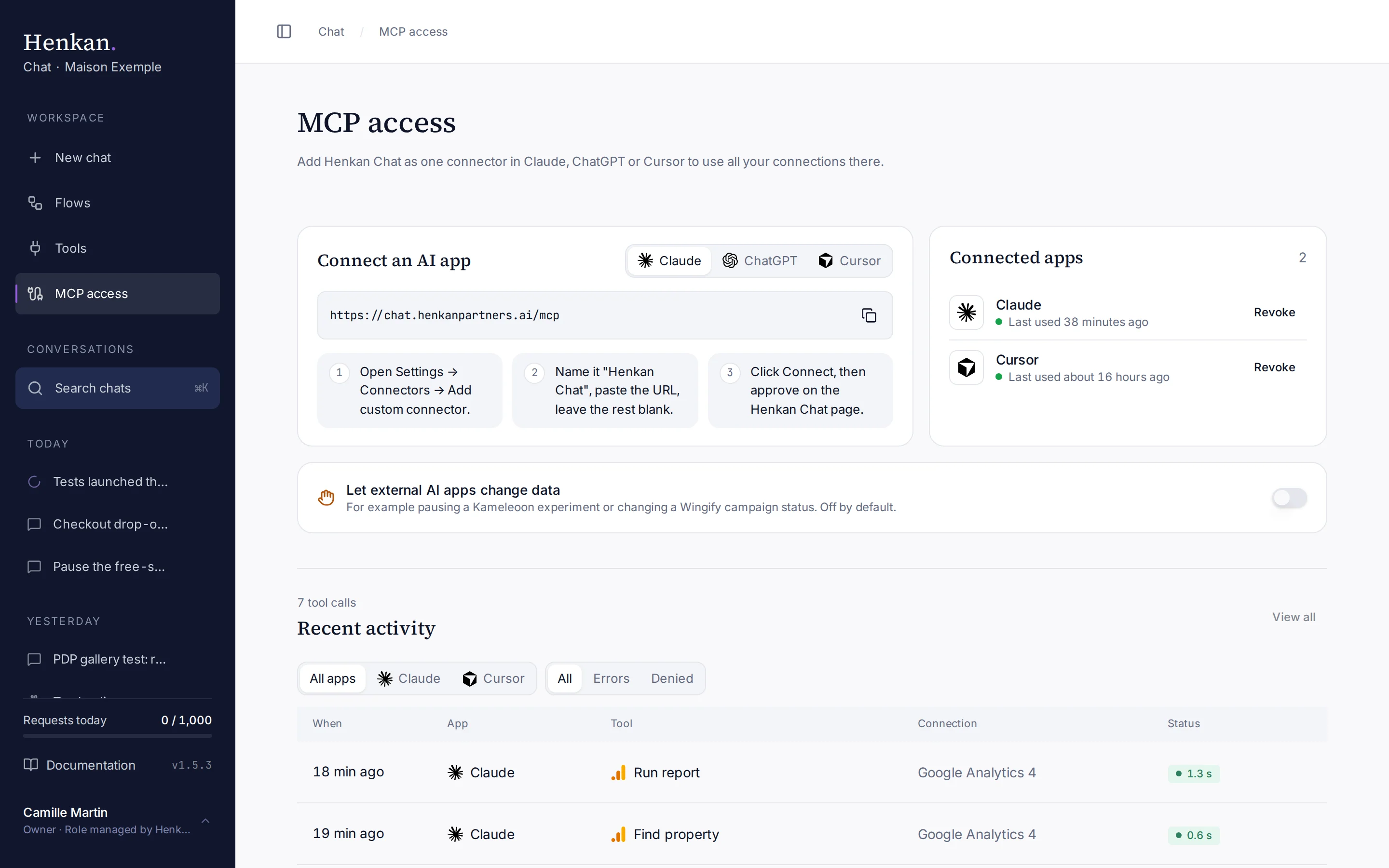
Connect an app#
The connector URL is:
https://chat.henkanpartners.ai/mcp
Claude#
- Open connectors In Claude, open Settings › Connectors › Add custom connector.
- Add Henkan Chat Name it "Henkan Chat" and paste the URL above. Leave advanced fields blank.
- Approve Click Connect, then approve on the Henkan Chat page.
ChatGPT#
- Turn on Developer mode In ChatGPT, open Settings › Apps & Connectors › Advanced and turn on Developer mode.
- Create the connector Create connector, paste the URL above and choose OAuth authentication.
- Approve Approve access on the Henkan Chat page.
Cursor#
- Add the server Add this to
~/.cursor/mcp.json:
{
  "mcpServers": {
    "henkan-chat": {
      "url": "https://chat.henkanpartners.ai/mcp"
    }
  }
}
- Connect Open Cursor's MCP settings and click Connect.
- Approve Approve access on the Henkan Chat page.
Approve access#
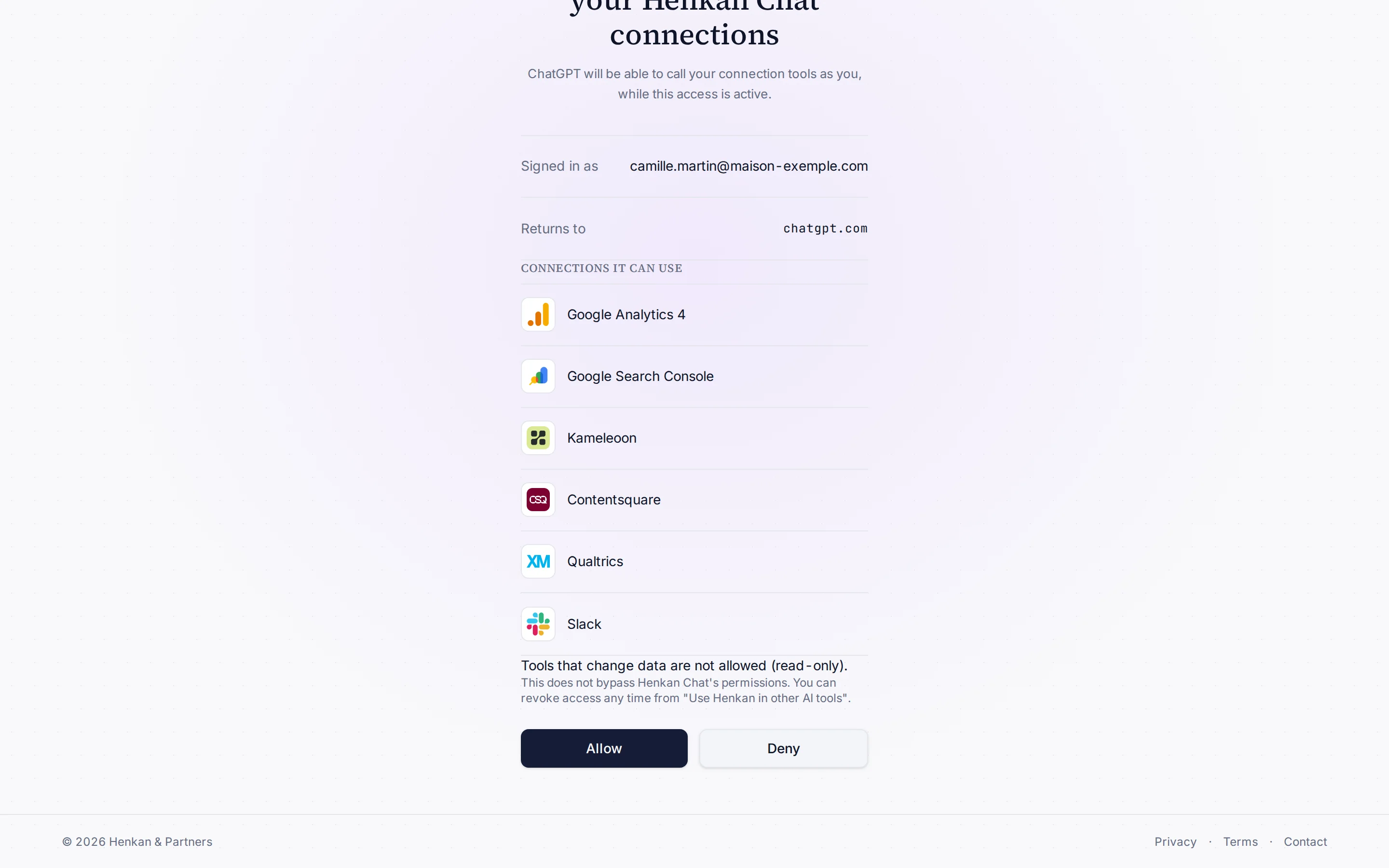
When you connect an app, Henkan Chat shows which account you are signed in with, where you will be sent back, and the connections the app can use. Select Allow to give it access, or Deny.
Access never bypasses Henkan Chat's permissions, and you can revoke it at any time.
What the app can do#
The app sees the connections of one of your organisations, chosen under Organisation for Slack and AI tools below. Each tool of each connection appears with the connection's name in front, for example google_analytics_4__ga4_run_report. Four Henkan tools come on top:
| Tool | What it does |
|---|---|
henkan_list_connections | Lists your connections and what each one covers. |
henkan_list_flows | Lists your saved flows with their trigger, on/off state and last run status. |
henkan_run_flow | Starts a flow by id or exact name, with optional parameter overrides. Flows only read data. |
henkan_get_flow_run | Returns a run's status, per-block results and report link. |
Manage access#
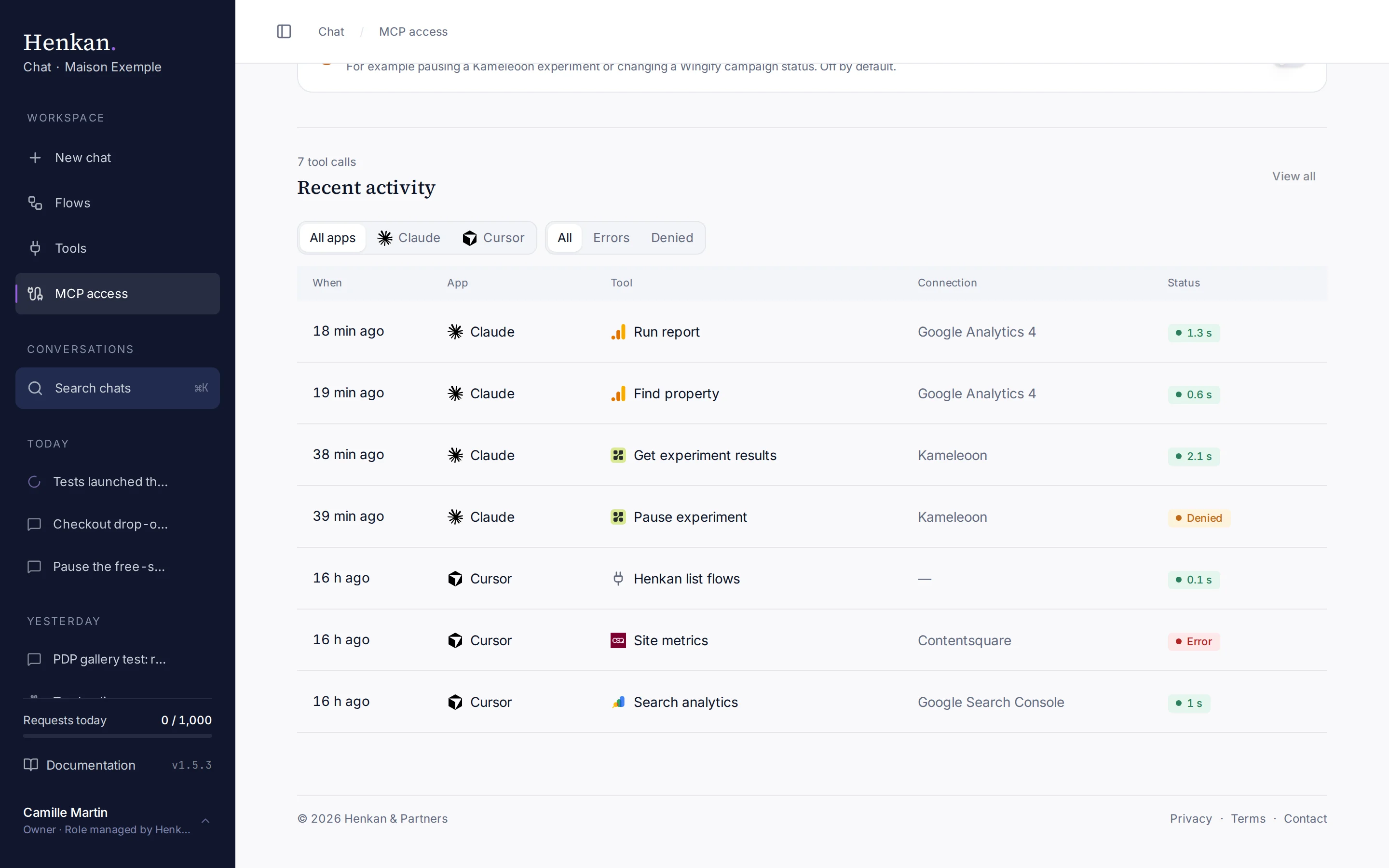
| Setting | Effect |
|---|---|
| Let external AI apps change data | Off by default: tools such as pausing a Kameleoon experiment or changing a Wingify campaign status are hidden from external apps. When on, those apps can call them; they are marked as destructive so the app asks you first. |
| Organisation for Slack and AI tools | Shown when you belong to several organisations. External apps and Slack use this organisation's connections and flows. By default, the first organisation you joined. |
| Revoke | Ends the app's access immediately, from its next request. The app must ask for approval again to reconnect. |
Recent activity lists each call made by an external app: when, which app, which tool and connection, the status (Success, Error or Denied) and how long it took. Filter by app or status, and select View all or Show more for older calls.