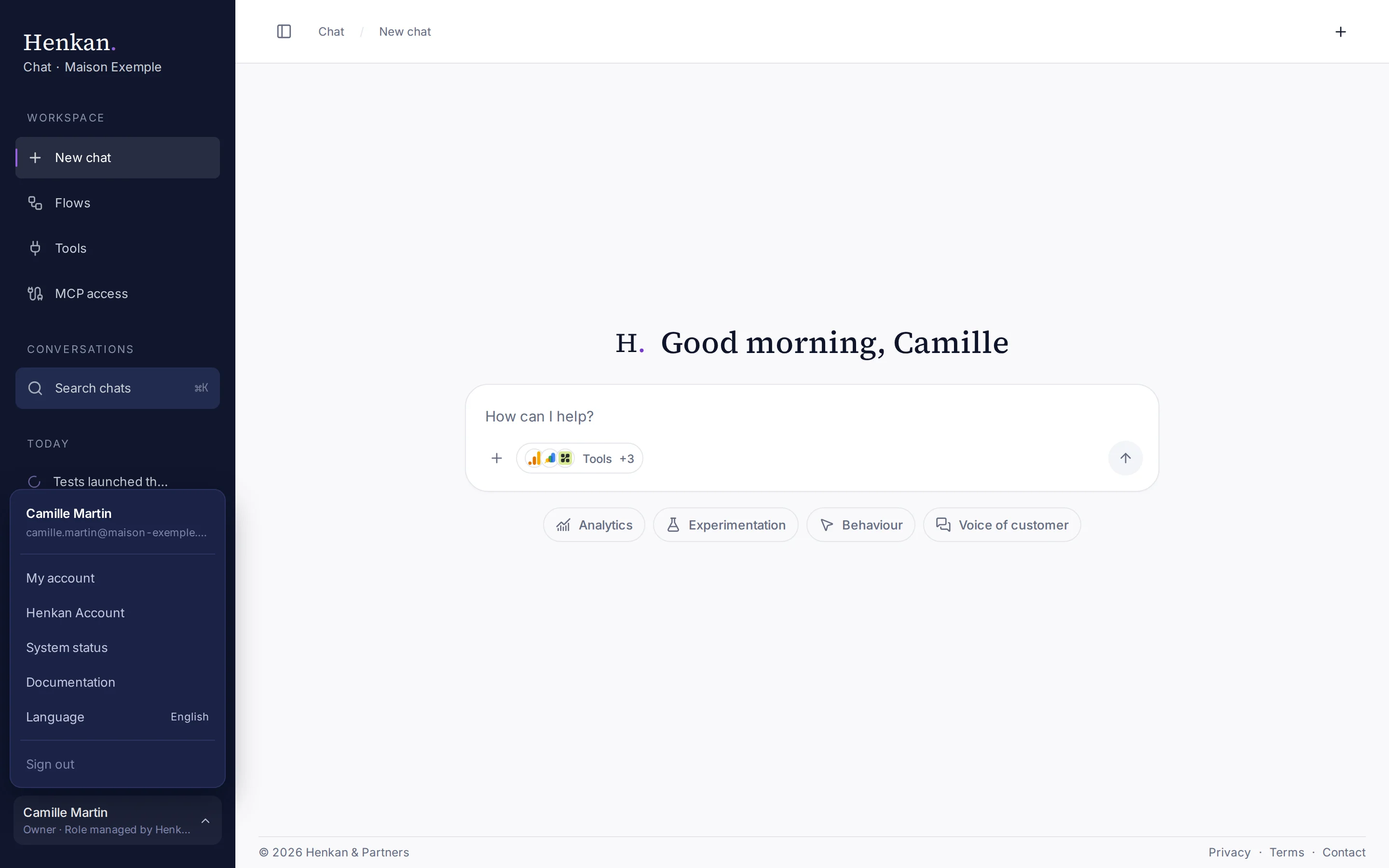
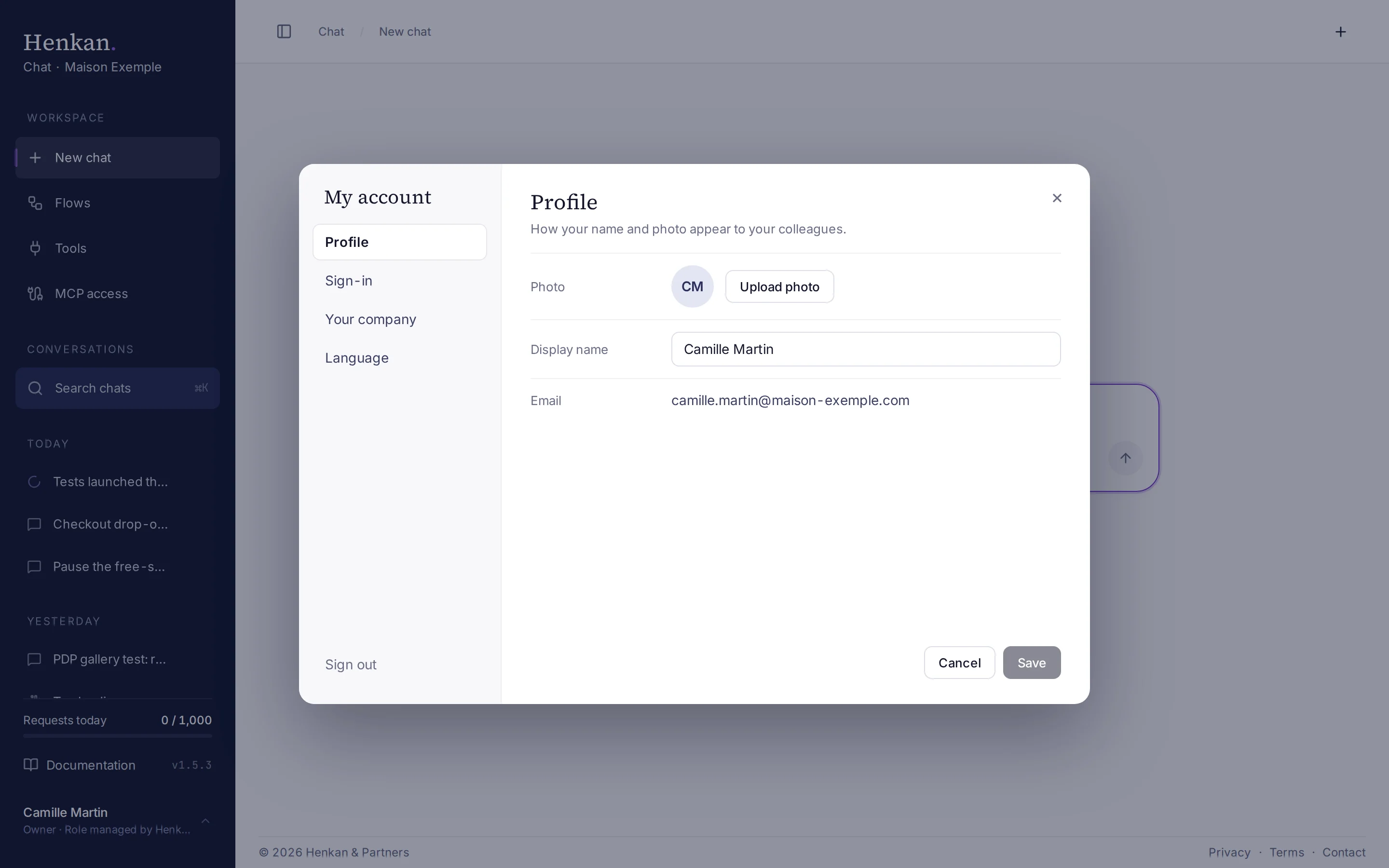
Change your photo, name, password and language in the My account window. Open it from the account menu: your name at the bottom of the sidebar.
Just above your name you also find your organisation's requests, a Documentation link and the version number, which opens what's new.
My account#
Select your name at the bottom of the sidebar, then My account. The address /account opens it too.
| Tab | What you can do |
|---|---|
| Profile | Upload photo (up to 5 MB) or Remove it. Edit your Display name (up to 80 characters, used in greetings and shown in the sidebar). Your Email can't be changed here. |
| Sign-in | With an email and password: enter your Current password and a New password of at least 8 characters, then confirm it. With Google, there is no password to manage here. This tab also holds Delete my account. |
| Your company | The company your access comes from (Henkan consultants see Henkan & Partners · Internal) and its Henkan tools. Access is managed by Henkan; Henkan Account opens the full list. |
| Language | English or Français. |
Select Save to apply the open tab. Press Escape, select × or click outside the window to close it; Cancel drops what you changed.
Language#
Henkan Chat is available in English and French. Open the account menu and select Language to switch between English and Français; the current one is shown on the right.
You can also pick it in My account › Language and select Save. The choice is saved in your browser. Henkan replies in the language you write in, whatever the interface language.
Switch between Henkan tools#
Select the Henkan. logo at the top of the sidebar, which reads Chat · your organisation underneath. It opens a menu with:
- Tool: the Henkan tools your company uses (Vision, Chat, Research, Variant), with Chat checked. Select another one to open it in the same tab (each tool has its own sign-in with the same email).
- Organisation: the organisations you belong to, with a check next to the one you are in. See Organisations.
A section with a single choice is not shown; if your company uses only Chat and you belong to one organisation, the logo is not a menu.
The account menu (your name at the bottom of the sidebar) also has:
- Henkan Account: the tools open to your team.
- System status: "All good", or which tool is slow or down. It is checked each time you open the menu, and opens the public status page.
Sign out#
Open the account menu and select Sign out.
Delete your account#
- Open My account Select your name at the bottom of the sidebar, then My account, then the Sign-in tab.
- Select Delete my account A warning explains what will be deleted.
- Confirm Select Delete my account again.