Share a conversation or a flow with colleagues from your company and choose what they can do. People outside your company can never be added.
Until you share them, your conversations and flows are private to you. See who counts as your company.
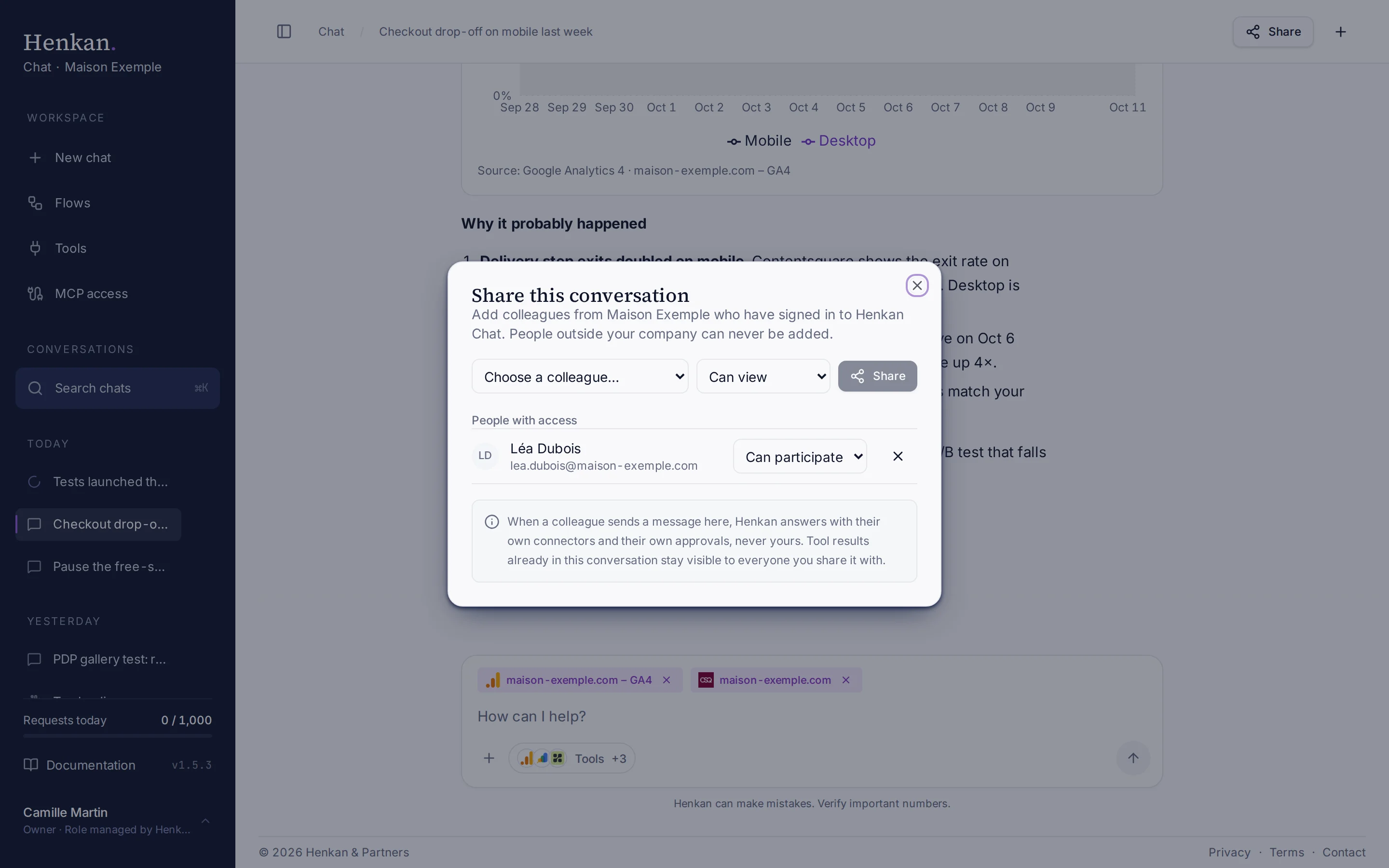
Share a conversation#
- Open the conversation Select it in the sidebar.
- Select Share The Share button is at the top of the page. Only the person who started the conversation sees it.
- Pick who Choose a colleague, or Everyone at your company. The list shows colleagues who have already signed in to Henkan Chat.
- Pick their access Can view or Can participate, then select Share.
| Access | What they can do |
|---|---|
| Can view | Read the whole conversation, including tool results. |
| Can participate | Read it and send messages. Henkan answers them with their connectors. |
To change someone's access, pick another option next to their name. To stop sharing, select × next to them.
Working on a conversation together#
- The conversation appears for your colleagues under Shared with me in the sidebar.
- Each question shows who asked it, with their name and photo.
- New messages from colleagues appear by themselves after a few seconds, without reloading.
- One answer is written at a time: if a colleague's answer is still being written, wait a moment before sending.
- Only the person who asked the last question can edit it or regenerate the answer.
Whose connectors Henkan uses#
When a colleague sends a message in your conversation, Henkan answers with their own connectors and their own approvals, never yours:
- Your personal connections (such as your Slack) are never used for someone else's message.
- If a tool needs approval, only the person who sent the message can answer it. Others see Waiting for … to answer this approval.
- The request counts against the sender's organisation's request limit.
- Tool results already in the conversation stay visible to everyone you share it with: you decided to share them. Share only conversations whose content your colleagues may see.
Share a flow#
- Open the flow On the Flows page, open the flow.
- Select Share In the toolbar (or the ⋯ menu), select Share.
- Pick who and their access Choose a colleague or everyone at your company, then Can view, Can run or Can edit.
| Access | What they can do |
|---|---|
| Can view | Open the flow and its run history. |
| Can run | The same, and start runs. Their runs use their connectors, and the report is saved in their own conversations. |
| Can edit | The same, and change and save the flow. |
Only you can switch the flow on or off, share it or delete it. Shared flows appear for your colleagues under Shared with me on the Flows page. Anyone the flow is shared with sees every run in the history; the runs of others show who started them.
Scheduled runs and runs started by an event keep running as you, with your connectors. People who can edit therefore also change what those runs do: give Can edit only to colleagues you trust with that.
Who counts as your company#
| You are | Your company |
|---|---|
| Part of a Henkan client | Everyone Henkan Account links to the same client. |
| A Henkan & Partners consultant | Consultants signed in with a confirmed henkanpartners.com address. |
| Not linked to a company | No one: you cannot share. Ask Henkan to link your account. |
Your Henkan consultants#
When a Henkan & Partners consultant is a member of your company's workspace, you can share that workspace's conversations and flows with each other, in both directions.
- With a person, or with Everyone at your company. Everyone includes the workspace's consultants.
- Never beyond the workspace. Consultants who are not members of it, and people from other companies, can't be added.