These tools connect to the vendor's own MCP server, and you sign in with your account for that tool. They all behave the same way in Henkan, so they share this page, with a short section per vendor.
Before you start#
- An account in the tool, with access to the data you want Henkan to read. Henkan has exactly that account's permissions.
- The vendor may need to enable MCP first (see the table). If sign-in fails, ask your account admin at the vendor.
- You can revoke access from the vendor's side at any time.
| Tool | What Henkan can read | What the vendor requires |
|---|---|---|
| Optimizely | Experiments, flags and results. | An Opti ID, and Optimizely Agent Platform enabled on your account and connected to Feature or Web Experimentation. It doesn't use Agent Platform credits. |
| MoEngage | Campaigns and their performance. | Read access in MoEngage to read; create or manage rights for changes. Sign-in asks for a code from your authenticator app, and you pick one workspace and environment per connection. Campaign analytics cover up to 30 days per query, flows up to 90. |
| Meta Ads | Ad accounts, campaigns and performance. | A Facebook Login for Business account with access to the ad accounts. Meta asks for ads_mcp_management plus ads_read or ads_management. |
| Amplitude | Charts, events, cohorts and experiments. Choose the US or EU data center your organisation uses. | On by default. An Amplitude admin can block or restrict it in Settings › Content Access › MCP. |
| Fullstory | Sessions, users and behaviour signals. | An admin turns on StoryAI and MCP in Settings › StoryAI Features. Without them the connection looks connected but has no tools. |
| Klaviyo | Campaigns, flows, lists and performance. | The Owner, Admin or Manager role on the Klaviyo account. |
| Braze | Campaigns, Canvases and engagement. | A company admin turns on MCP OAuth access (Settings › Admin Settings › OAuth), and you need the Use MCP Server permission, which is off by default. Not available with IP allowlisting. Choose Braze's US server (mcp.braze.com) or EU server (mcp.braze.eu) when you connect. |
| Air360 | Experience analytics: pages, journeys and frustration. | An Air360 account. Ask your Air360 contact whether MCP is open on your plan. |
Connect#
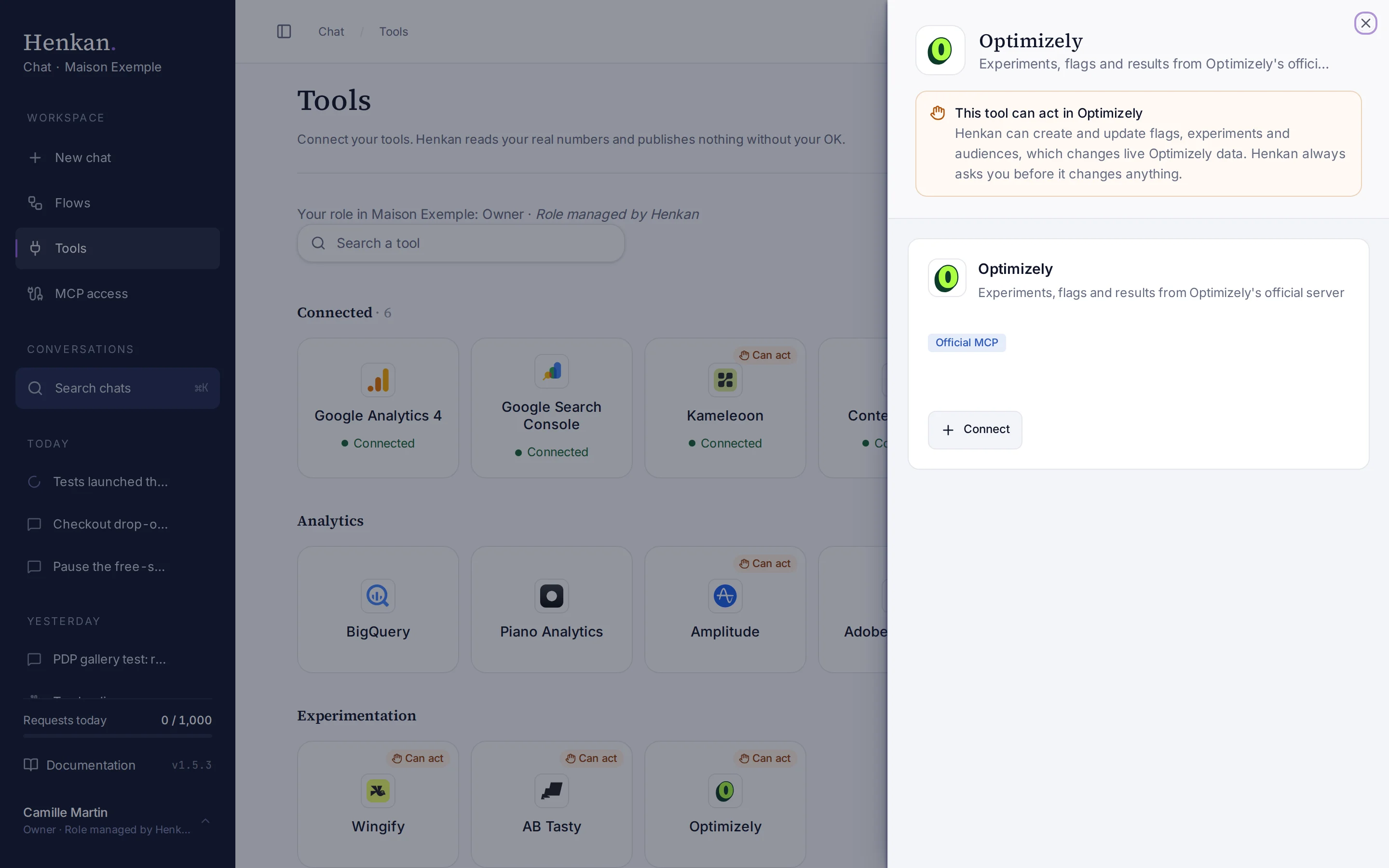
1
Official MCP. The tool connects through the vendor's own MCP server.
2
Connect. Opens the vendor's sign-in.
- Open Tools In the sidebar, select Tools, then select the tool, for example Optimizely.
- Select Connect For Amplitude, choose the US or EU data center; for Braze, the US or EU server.
- Sign in with the vendor Log in with your account for that tool and allow access.
- Check the result The tile shows Connected, and Advanced settings › Tool by tool lists the vendor's tools.
What you can ask#
- "Which Optimizely experiments are running, and how are they doing?" (Optimizely)
- "Spend, clicks and cost per purchase by campaign last week." (Meta Ads)
- "Weekly active users for the last 12 weeks." (Amplitude)
- "Open and click rates of last month's campaigns." (Klaviyo, Braze or MoEngage)
- "Which pages have the most frustration signals?" (Fullstory or Air360)
What Chat can and can't do#
The tools come from the vendor and can change when the vendor updates its server. Open the connection's Advanced settings › Tool by tool to see the current list.
| Tool | What it does | Read or write | Asks first? |
|---|---|---|---|
| Tools the vendor marks as read-only | Read data from the tool. | Read | No |
| Any other tool | May change data in the tool. | Write | Yes |
Henkan trusts the vendor's own labels. A tool the vendor doesn't mark as read-only always asks before running.
Limits and good to know#
- Limits come from the vendor. Rate limits, quotas and data retention are those of your plan with the vendor.
- One account per connection. Connect a second account the same way.
- Costs and who pays. Your Henkan plan covers the AI requests: each question counts towards your organisation's requests (see Usage and limits). Rate limits and any usage costs on the vendor's side fall under your contract with that vendor.
Troubleshooting#
| Error or symptom | Fix |
|---|---|
| Sign-in fails or the vendor refuses access | The vendor may need to enable MCP for your organisation. Ask your account admin at the vendor. |
| The tile shows Sign in again | Select it and sign in again. Access may have been revoked at the vendor. |
| A tool is missing | The vendor changed its server. Open the connection and select Refresh tools. |
| Amplitude or Braze shows no data | Check that you chose the right region (US or EU). Connect again with the other one. |
Sources#
- Install Optimizely Experimentation MCP server (Optimizely)
- MoEngage MCP Server (MoEngage)
- Ads MCP Server: get started (Meta for Developers)
- Amplitude MCP Server (Amplitude)
- Fullstory MCP (Fullstory Developers)
- Fullstory MCP client setup (Fullstory Developers)
- Connect to the MCP server (Klaviyo Developers)
- Setting up the Braze MCP server (Braze)