Sign in with Google or your work email and start asking questions. Anyone can create an account, but Henkan opens access per company, for the teams of Henkan & Partners' clients.
Not a Henkan client yet? On the Chat home page, select Talk to Henkan to tell the Henkan team about your needs. There is no self-serve beta.
Sign in#
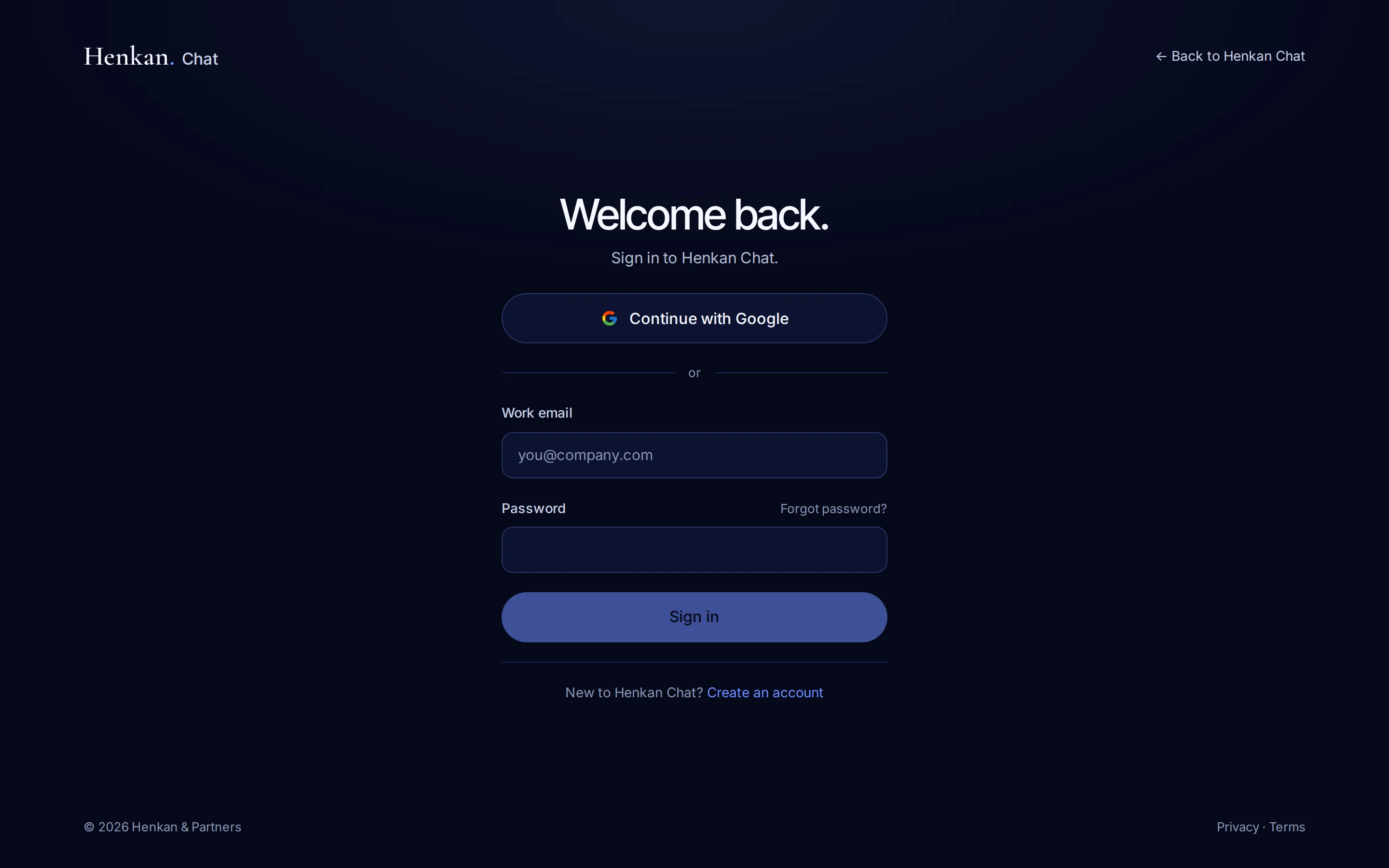
- Open the sign-in page Go to chat.henkanpartners.ai and select Sign in.
- Choose a method Select Continue with Google, or enter your Work email and Password, then select Sign in.
- Start chatting You land on a new chat. If your company does not have access yet, you see the screen described below.
On a phone, the sign-in screen shows only Continue with Google. Tap Use email instead to sign in with your email and password, and Back to return to the Google button.
Create an account#
Invited by Henkan? Select Open Chat in the invitation email: the page opens on Create an account with your address already filled in.
- Switch to sign-up On the sign-in page, select Create an account.
- Fill in the form Enter Your name, your Work email and a password of at least 8 characters, then select Create account.
- Confirm your email Open the confirmation email and follow the link. The page shows Check your inbox to confirm your email. until you do.
Reset your password#
- Ask for a link On the sign-in page, select Forgot password?, enter your email and select Send reset link.
- Open the email If an account exists for that address, a reset link is on its way.
- Choose a new password The link opens Choose a new password. Enter it and select Update password.
You can also change your password while signed in, from Your account.
If you see "Reserved for Henkan clients"#
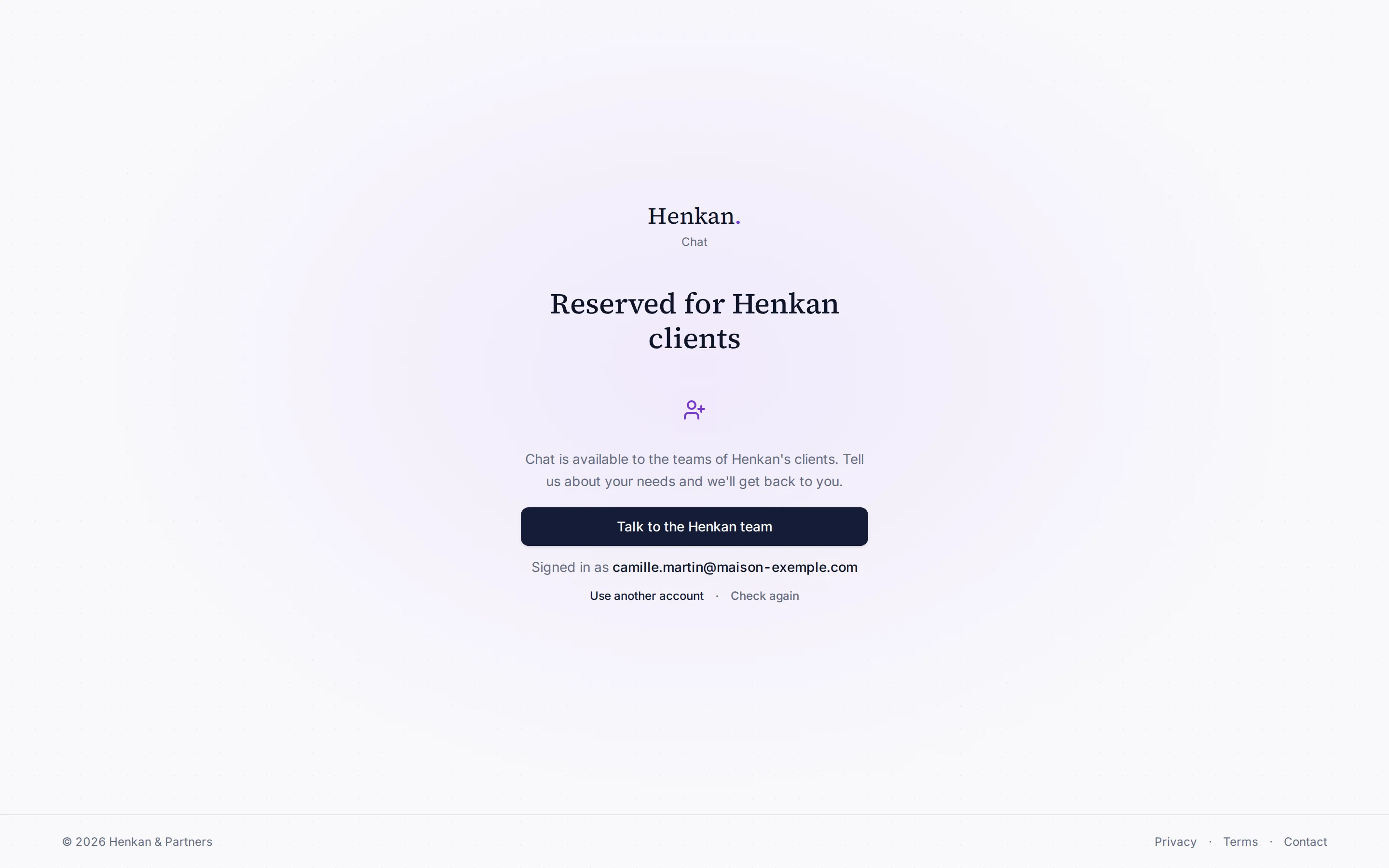
This screen means your account exists, but your company is not (yet) set up as a Henkan client. Nothing is wrong with your account.
| Button | What it does |
|---|---|
| Talk to the Henkan team | Opens the Henkan contact form. Tell us about your needs and we get back to you. |
| Use another account | Signs you out so you can sign in with another email or Google account. |
| Check again | Asks Henkan again whether your account has access. Use it after Henkan confirms your company was added. |
Roles#
Every client user has the same features: chat, connectors, flows, Slack and MCP access. The account row at the bottom of the sidebar shows Member under your name, whatever your organisation role.
Inside your company's organisation, people are owners or members: everyone uses the organisation's connectors, and owners also manage them. Your conversations and flows stay private until you share them.