Connect your tools once, and Henkan answers with your real numbers. Each connector links Henkan Chat to one account in one tool, such as your Google Analytics account or a Kameleoon workspace, with that account's own permissions.
In the Acme demo workspace, every connector is already connected to fictional data and can't be changed.
Connect a suggested tool#
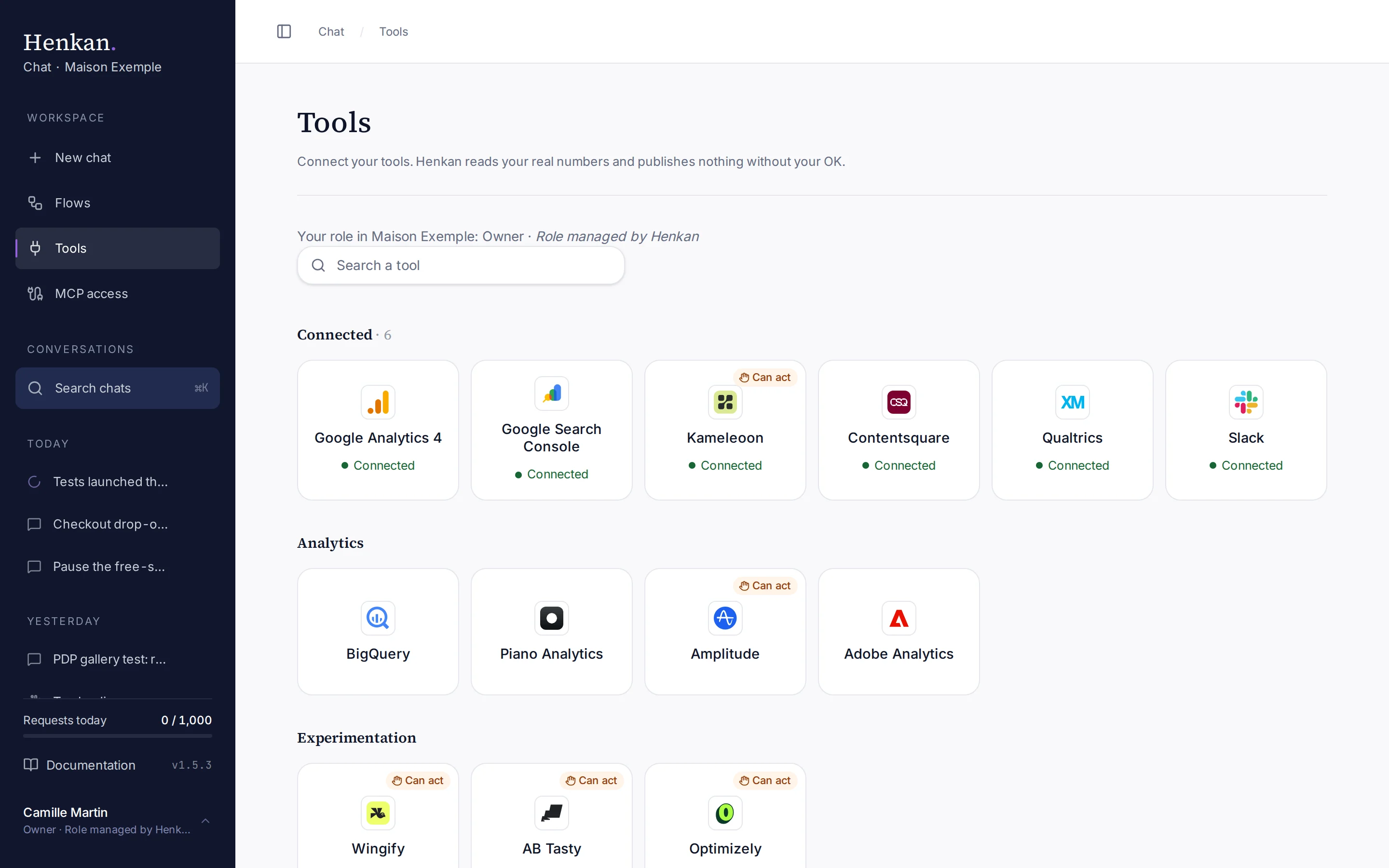
The Tools page shows your whole stack on one page: connected tools first, then one section per family: Analytics, Experimentation, Behaviour and VoC, CRM and engagement, Tags and consent, Acquisition and Workspace.
- Connected tools come first, with a green dot.
- Other tools are grouped by family below.
- The search box narrows the page.
- Sign in again shows in amber on the tile of a tool that needs signing in again.
- Open Tools In the sidebar, select Tools.
- Select a tool Its panel opens, with its status, what Henkan does with it and how to connect it.
- Select Connect For tools with several connection methods, a dialog lets you choose one (see below).
- Sign in or enter credentials Depending on the tool, a sign-in window opens or a form asks for API credentials (see the table below).
- Check the result The tool turns solid on the map and its panel shows the connection as Connected, with its tools loaded.
| How it connects | Tools |
|---|---|
| Sign-in window | Google Analytics 4, Search Console, Google Tag Manager, Slack, Notion, and the official MCP connectors: Optimizely, MoEngage, Meta Ads, Amplitude, Fullstory, Klaviyo, Braze, Air360, Commanders Act, Tealium, HubSpot and Salesforce. |
| API credentials | Kameleoon, Wingify, Contentsquare, Qualtrics, Microsoft Clarity, Piano Analytics, AB Tasty, BigQuery, Didomi, Hotjar and Henkan Vision. |
| Something first | Commanders Act asks for the address it sent you, and Salesforce for your External Client App's keys, before the sign-in. Adobe Analytics uses server-to-server credentials. OneTrust needs no sign-in. |
Credentials are tested before they are saved. If the test fails, the dialog shows the error and nothing is saved.
A small Max badge on a logo marks a premium connector your plan doesn't include (BigQuery, Adobe Analytics, Salesforce, Optimizely, your own MCP servers). Its panel explains how to switch to Max or to try it, with a Talk to Henkan link. On the Free plan an organisation can hold 2 connections: after that the page shows Your Free plan includes 2 tools. with a Talk to Henkan link, and your connections stay as they are. See Requests and plans.
Choose a connection method#
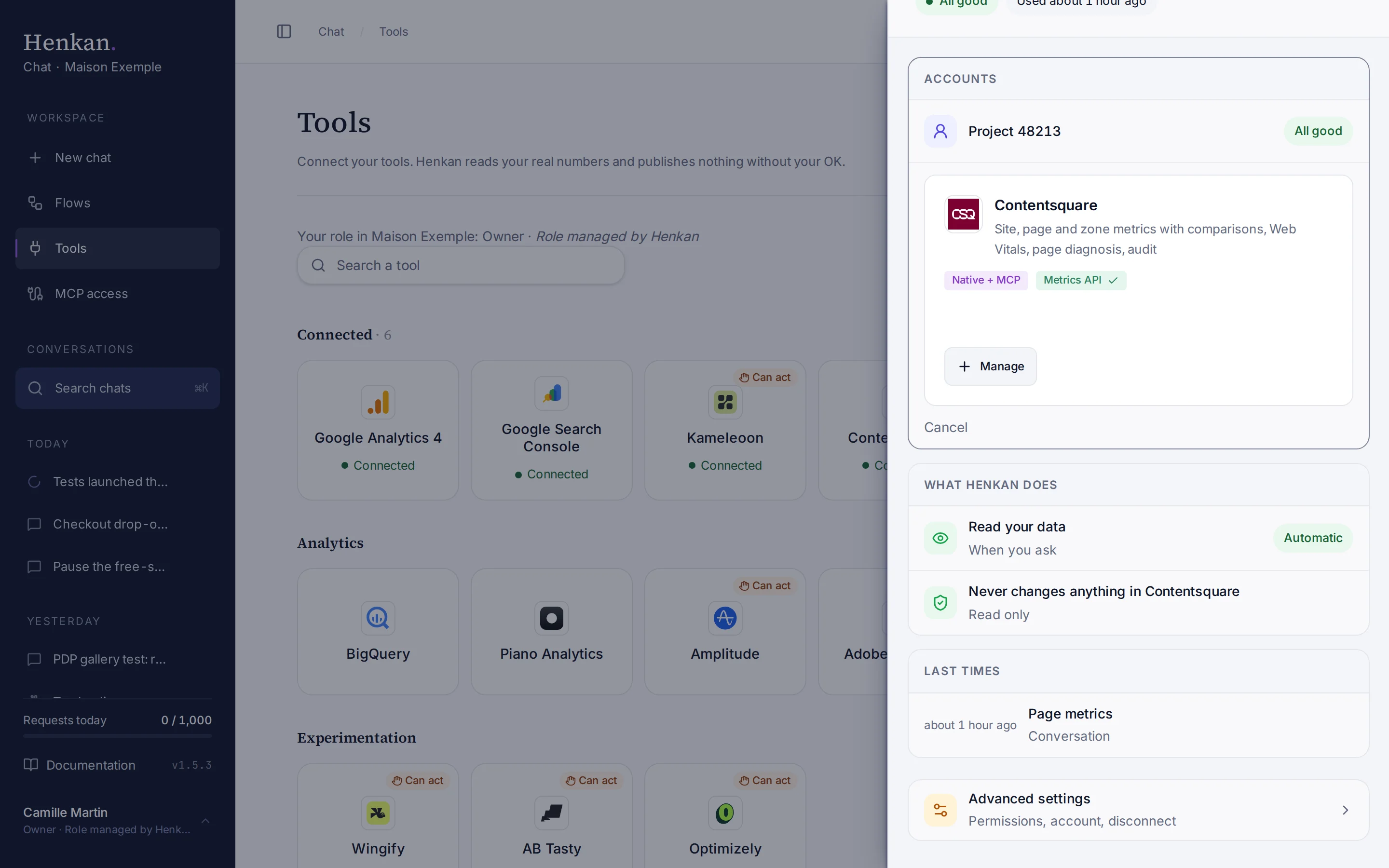
Contentsquare, Kameleoon and Notion can be connected in two ways. You can use both at once; Henkan picks the right one for each question. Once a tool is connected, its card shows a green chip per method in use and its button becomes Manage, which opens the same dialog.
| Tool | Method | Best for |
|---|---|---|
| Contentsquare | Official connection (MCP) (recommended), signed in with your Contentsquare account | Journeys, funnels, frustration and rage clicks, errors, page comparison. A Contentsquare admin must enable MCP. Analytics calls count against your Contentsquare plan quota. |
| Contentsquare | Metrics API, with API credentials | KPIs, zones, Web Vitals, diagnosis and audit, without using the MCP quota. |
| Kameleoon | Automation API (credentials) (recommended) | Results with Henkan's statistics, SRM, breakdowns, audits, pause or stop with approval. |
| Kameleoon | Official connection (MCP) | Variation code and Kameleoon's own tools. |
| Notion | Connect Notion (recommended) | Read pages and databases, write with approval. |
| Notion | Notion MCP (advanced) | Notion AI search. |
Enter API credentials#
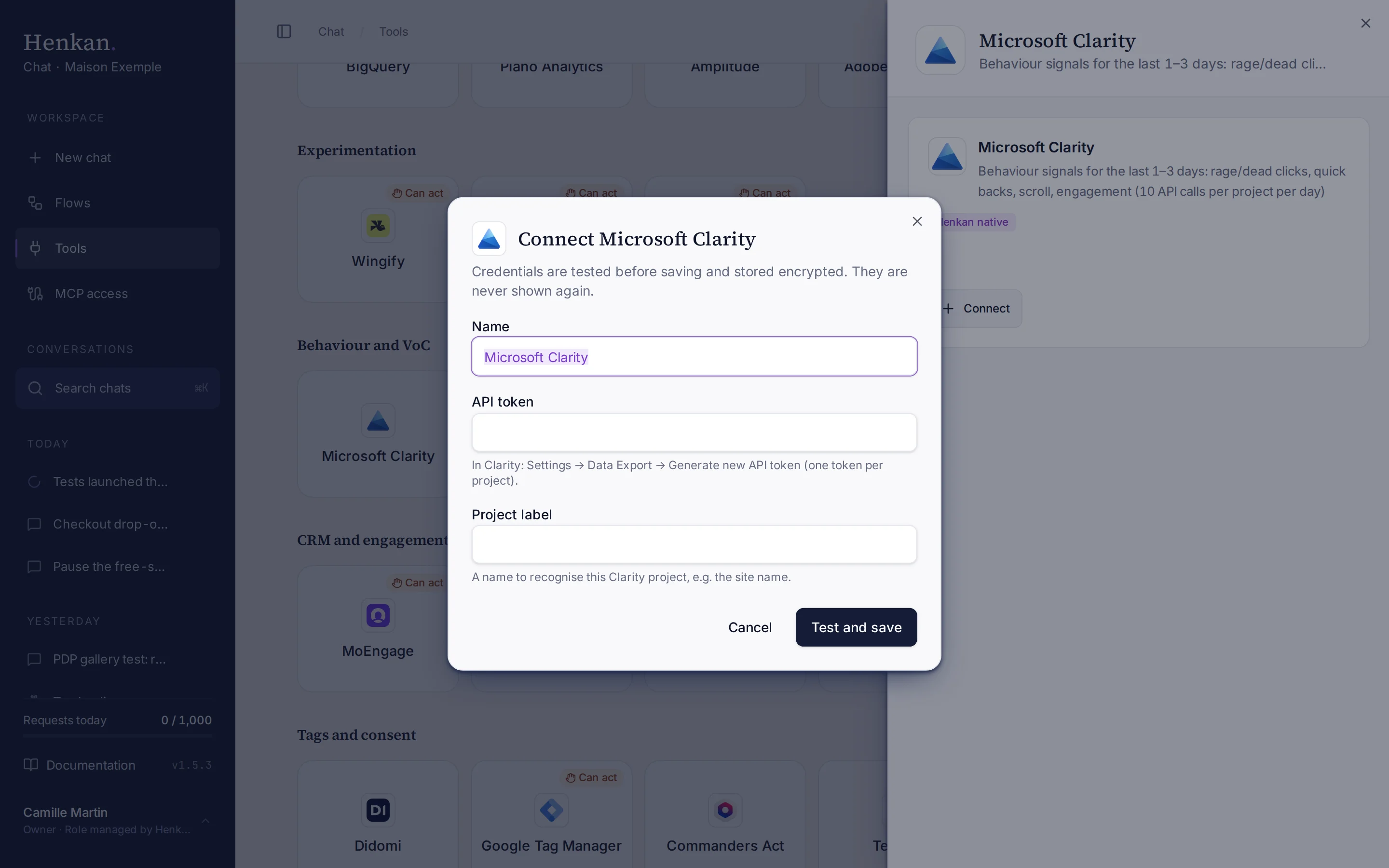
Each field explains where to find the value in the tool. Credentials are stored encrypted and are never shown again, not even to you; to change them, disconnect and connect again.
Each tool's page lists the values it needs: see Supported tools.
Manage your connectors#
Connectors belong to your organisation: every member can use them, and only organisation owners can add, rename, sign in again, refresh or disconnect them. Members see the list without these buttons, with a note saying so. The top of the page shows your role, for example Your role in Maison Exemple: Member · Role managed by Henkan: roles are decided by Henkan in Henkan Account, so ask your Henkan contact if you need to become an owner.
Some connections act as you rather than as your company, such as Slack. They are marked Just for you:
- Only you can see and use them, in chats, flows, Slack and other AI tools, even inside your organisation.
- Organisation owners cannot use or change them.
- Any member can connect their own, and manages it themselves.
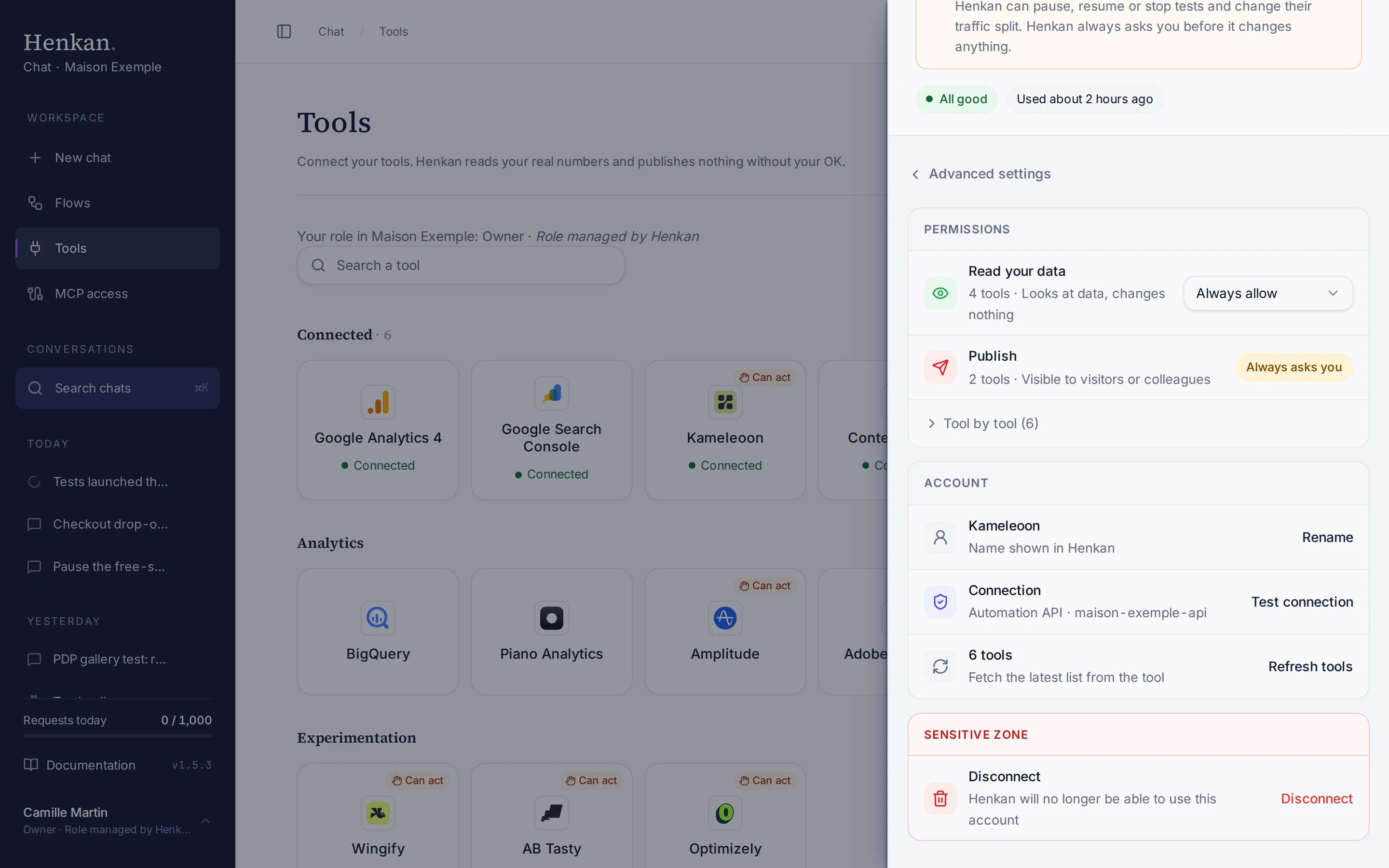
Select a connected tool to open its panel: its status, what Henkan does with it and its last uses. Advanced settings holds the permissions, each account (name, connection method and account, number of tools) and the actions below. When a connection stops working, the panel offers Reconnect.
| Status in the panel | Meaning | What to do |
|---|---|---|
| All good | Ready to use. The tile says Connected. | Nothing. |
| Sign in again | The sign-in expired or was revoked. The tile says Sign in again. | Select Sign in again, or paste a new token for token-based servers. |
| One account stopped responding | One of the tool's accounts failed its last check. | Open Advanced settings and select Test connection. If it keeps failing, disconnect and connect again. |
| Setting up | The connection was just created and is not verified yet. | Finish the sign-in, then Test connection. |
| Action | What it does |
|---|---|
| Rename | Changes the name shown in Henkan Chat. It does not change anything in the tool. |
| Refresh tools / Test connection | Checks the connection and reloads its list of tools. |
| Sign in again | Opens the tool's sign-in window again, for connections that use a sign-in. For Notion, Share more pages reopens Notion's page picker. |
| Disconnect | Deletes the connection and its saved credentials. For Google, Henkan also revokes its access where possible. |
Choose which tools Henkan may use#
Open a tool's Advanced settings to see its tools. These settings apply to every conversation and flow in the organisation, and only owners can change them.
| Group | What its tools do |
|---|---|
| Read your data | Look at data and change nothing. |
| Prepare changes | Change data, or prepare drafts nobody sees yet. |
| Publish | Make changes visible to visitors or colleagues. |
Each group has one approval setting. To switch a single tool on or off, or set it apart, open Tool by tool under the groups.
| Setting | Effect |
|---|---|
| Switch on | Henkan may use the tool. |
| Switch off | Henkan never sees the tool. |
| Always allow | Henkan runs the tool without asking. Default for tools that only read data. |
| Ask before running | An approval card appears in the chat first. See Approve actions. |
| Always asks (changes data) | Shown instead of the setting for tools that change data. They always ask. |
To keep a whole connection out of one conversation only, use Tools in the message box instead. See Ask a question.
Slack settings#
The Slack connection has extra settings for talking to Henkan from Slack. See Henkan in Slack.