Henkan reads your Search Console properties through Google's Search Console API, signed in as you. It reports clicks, impressions, CTR and position, inspects URLs and reads sitemaps, and never submits or changes anything.
Before you start#
- A Google account with access to the property in Search Console. Henkan sees the same properties as this account.
- Nothing to create in Google Cloud. You only sign in.
Henkan asks Google for one permission only: read-only access to Search Console (webmasters.readonly).
Connect#
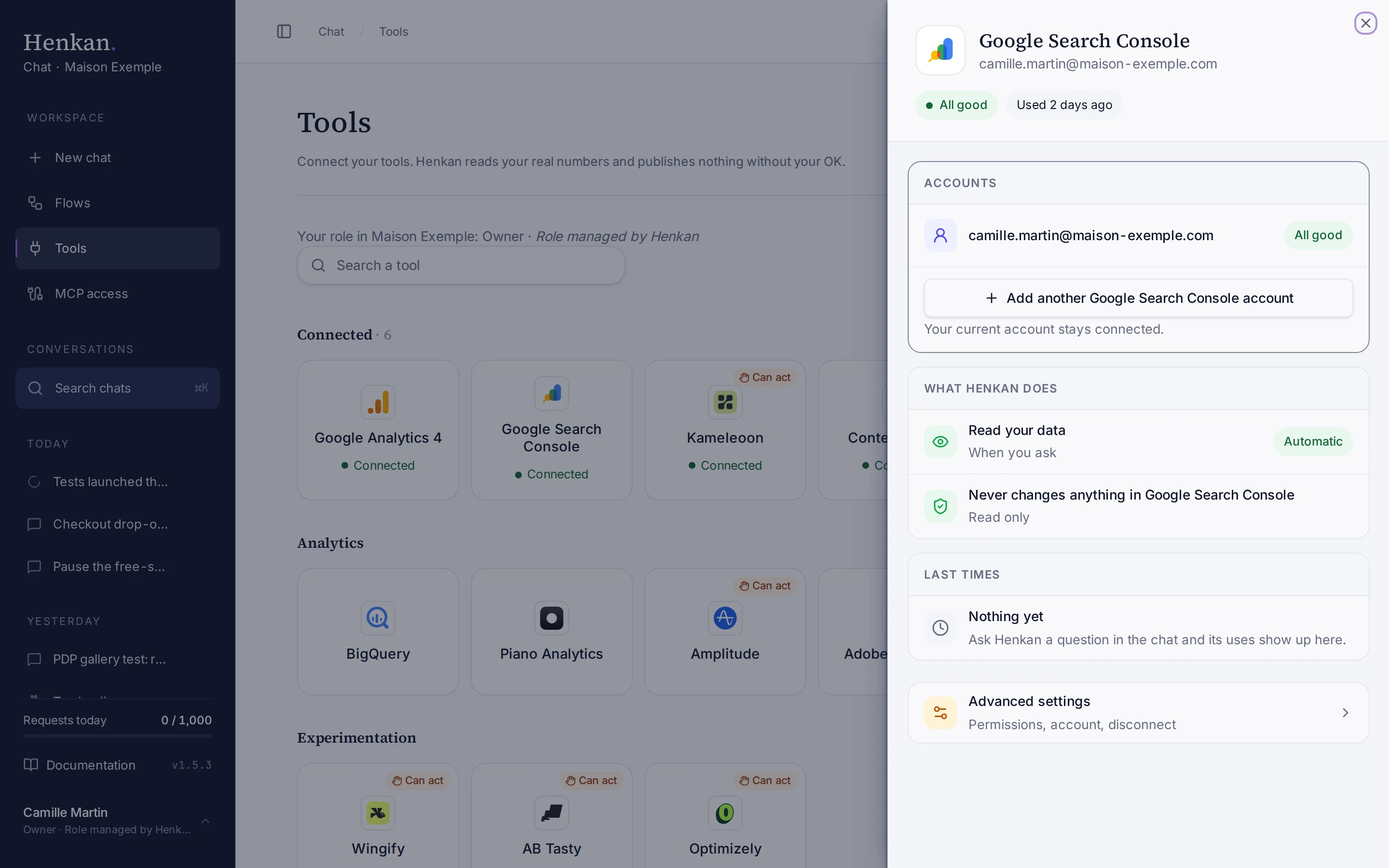
1
Status. Whether the connection works, and when Henkan last used it.
2
What Henkan does. Search Console is read only.
3
Advanced settings. Permissions, renaming, signing in again and disconnecting.
- Open Tools In the sidebar, select Tools, then select Google Search Console.
- Select Connect A Google sign-in window opens.
- Choose the Google account Pick the account that has access to your properties, and allow read-only access.
- Check the result The tile shows Connected.
Connect another Google account the same way if your properties are spread across several.
What you can ask#
- "Top 20 queries for maison-exemple.com last 28 days, with clicks, CTR and position."
- "Which pages lost the most clicks compared with the previous 28 days?"
- "Is https://www.maison-exemple.com/robe-lin indexed? What canonical did Google pick?"
- "Do our sitemaps have errors?"
What Chat can and can't do#
| Tool | What it does | Read or write | Asks first? |
|---|---|---|---|
| List sites | Lists the Search Console properties of this connection. | Read | No |
| Search analytics | Clicks, impressions, CTR and average position by query, page, country, device or date. | Read | No |
| Compare periods | The same report for two periods, with deltas, sorted by change in clicks. | Read | No |
| Inspect URL | Index verdict, coverage, last crawl, Google and user canonical, mobile usability, rich results. | Read | No |
| List sitemaps | Submitted sitemaps with their dates, warnings and errors. | Read | No |
Henkan never requests indexing, submits sitemaps or removes URLs.
Limits and good to know#
- Anonymised queries. Google hides queries made only a few times or containing personal information, and stores only the top rows, so totals by query are lower than the property's totals. Henkan says so when it matters.
- Row limit. The API exposes at most 50,000 rows per day per search type, sorted by clicks. Very large sites see only their top queries and pages.
- URL inspection quota. Google allows 2,000 inspections per property per day and 600 per minute.
- Search analytics load. Google also limits heavy reports (grouping by page and query over long periods). If you hit it, Google asks you to wait about 15 minutes.
- Combine with GA4. Search Console shows demand; Google Analytics 4 shows what visitors did next.
- Costs and who pays. Your Henkan plan covers the AI requests: each question counts towards your organisation's requests (see Usage and limits). Requests use the property's Search Console quotas.
Troubleshooting#
| Error or symptom | Fix |
|---|---|
| Google sign-in expired or was revoked | Open the connection and select Sign in again. |
| Google did not give access to your Search Console data | The Search Console permission was left unticked on Google's sign-in screen. Select Connect again and tick the box that lets Henkan Chat see your Search Console data. |
| Search Console access denied | The connected account has no access to that property. Ask a property owner to add it, or connect the account that has access. |
| Search Console quota reached | Wait about 15 minutes and try again, with a shorter period or fewer dimensions. For URL inspection, the limit is per day. |
| A property is missing | Check the property in Search Console with the same Google account, then select Refresh tools on the connection. |
Sources#
- Usage limits (Search Console API, Google for Developers)
- Getting your performance data (Search Console API, Google for Developers)
- About Search Console data (Search Console Help)