Henkan never changes anything in your tools without your explicit OK. Most tools only read data; the few that act, such as pausing a Kameleoon test, posting to Slack or writing a Notion page, ask you first.
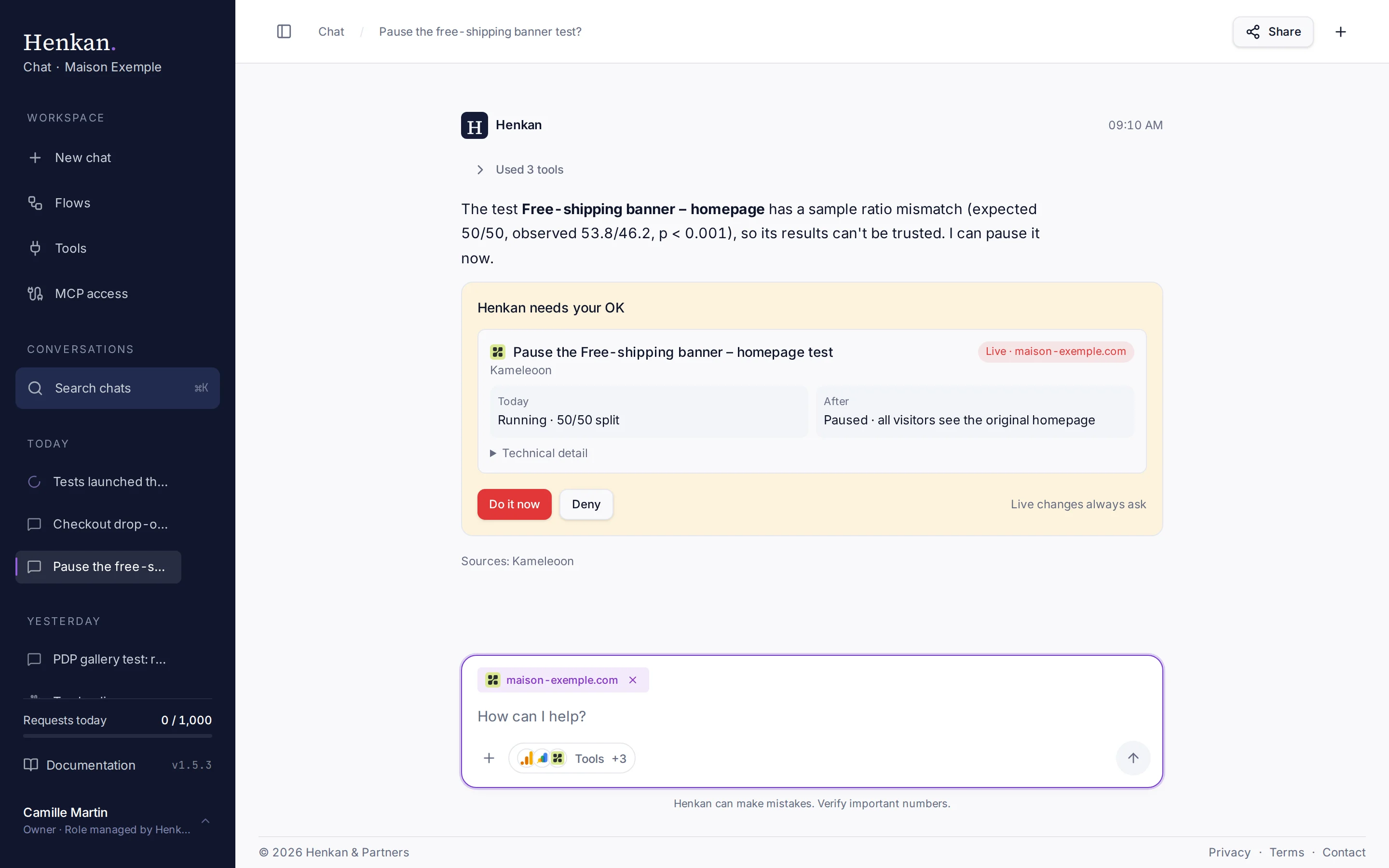
What the approval card shows#
Each card says in plain words what Henkan is about to do, the state Today and After, and any risk you should know first, such as tracking that would stop. The raw tool call stays folded under Technical detail.
| Tag | Meaning |
|---|---|
| Draft | Nothing changes for your visitors or colleagues yet (a GTM workspace edit, a draft test, a Notion page). You can tick Don't ask again for drafts from this tool. |
| Live | Visible right away on your site or to other people (publishing a GTM version, pausing a test, changing traffic, posting to Slack). Live changes ask every time. |
| Read only | Shown only if you chose Ask before running for a read tool. |
When Henkan proposes several actions at once, tick the ones you agree with and select Approve the selected.
Approve or deny a tool#
- Read the card Henkan needs your OK shows the action, the connection, the state before and after, and its tag.
- Decide Select Approve (Do it now for a live change) or Deny. For drafts and read tools you can also tick Don't ask again.
- Henkan continues The answer resumes with the result, or without it if you denied.
If you send a new message instead of deciding, the pending call is cancelled and shown as Denied.
| Choice | Effect |
|---|---|
| Approve / Do it now | Runs the call this time only. |
| Approve with Don't ask again ticked | Runs the call and sets the tool to Always allow on the Tools page. Only offered for drafts and read tools: live changes ask every time. |
| Deny | Skips the call. Henkan tells you what it could not do. |
Which tools always ask#
Tools that change data always show the approval card, whatever their setting. On the Tools page they are marked Always asks (changes data).
| Connection | Tools that always ask |
|---|---|
| Kameleoon | Pause, resume and stop an experiment, change traffic allocation, request a raw export, create a draft experiment |
| Wingify | Change a campaign status |
| AB Tasty | Play or pause a campaign |
| Slack | Post a message, upload a file |
| Google Tag Manager | Every action that changes the container: create, update, remove, revert, publish, preview, sync. Reading never asks, and Always allow isn't offered for a change |
| Notion | Create a page, append to a page, add or update database rows and properties, replace a section, update a block, add a comment, create a database, save a test learning |
Ask first for any tool#
You can also make read-only tools ask before running, for example a slow audit you don't want to run by accident.
- Open Tools In the sidebar, select Tools.
- Open the tool's settings Select the tool, then Advanced settings.
- Change a group The tools are grouped into Read your data, Prepare changes and Publish. Choose Ask before running or Always allow for a whole group.
- Or set one tool Open Tool by tool to set a single tool. Publish tools always ask before publishing or posting.
See Connect your tools for all tool settings. Only organisation owners can change them.